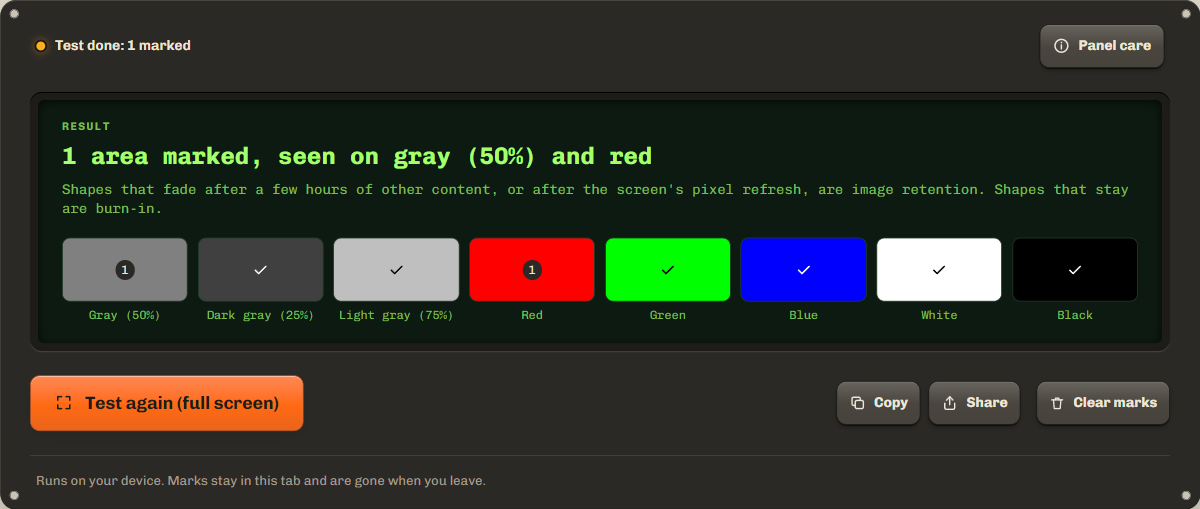
First find out if you have burn-in or image retention, because only image retention goes away. Show flat gray on the screen. If a faint shape of the last image fades after a few minutes of normal use, it was image retention, and it is gone. If the same shapes stay on every image for days, it is burn-in. Real burn-in cannot be undone with a setting or an app. On an OLED TV or monitor, run the maker’s pixel refresh: it can even out the panel. Then change your settings so it does not get worse, and check the warranty.
Burn-in vs image retention: temporary or permanent
Both look the same at first: a faint copy of something that was on the screen for a long time, such as a status bar, a channel logo or a taskbar. The difference is time.
- Image retention (Apple calls it image persistence) is temporary. Apple says it “disappears after a few minutes of normal use” on an iPhone (Apple Support). LG describes it on its TVs as an image that “sticks” and usually fades within a moment or two (LG Help Library).
- Burn-in lasts. Samsung puts it plainly: “Unlike temporary image retention, burn-in does not disappear over time” (Samsung Support).
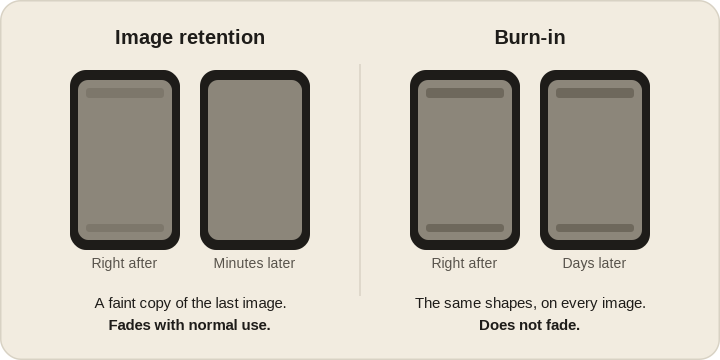
So do not panic at the first sight of a ghost. Use the screen normally with moving content for a while, then check again with the screen burn-in test. If the shape is fainter, keep going. If it has not changed after several days, treat it as burn-in.
How to fix burn-in, step by step
Go from the easiest step to the hardest, and run the burn-in test again after each one.
- Find out which one it is. Use the screen normally for a while, then look at flat gray again. A shape that fades was temporary image retention. A shape that stays for days is permanent burn-in.
- Run pixel refresh (OLED TVs and monitors). It is a maintenance cycle in the screen’s own menu. It evens out the panel and can make mild burn-in less visible, but it is not an eraser. The menus for Samsung, LG and Dell are below.
- Show changing content (image retention, mostly LCD). Any moving picture helps retention fade. For its displays, Apple suggests a screen saver for about as long as the still image was on. The stuck pixel fixer fills the screen with changing colors too, and it is the right tool for a single stuck pixel. It cannot undo burn-in, and long flashing adds wear on an OLED, so do not use it for that.
- Lower the brightness and shorten the screen timeout. This stops it getting worse. Apple and Google both give this advice for their phones.
- Check the warranty. Real burn-in means a new panel. Some makers cover it, some do not. See the warranty section at the end.
How to fix screen burn-in on a phone
Phone makers give the same advice: burn-in comes from a still image at high brightness for a long time, so cut both. They do not offer a button that removes burn-in. Google goes further and says: “Don’t install apps that promise to reduce burn-in” (Pixel Phone Help).
What you can do:
- Wait and use the phone normally. If it is image retention, it fades.
- Lower the brightness and shorten the time before the screen turns off.
- Avoid apps or games that keep the same bright image on screen for hours, such as a navigation app at full brightness.
- If the shapes stay after days, contact the maker or the store. A real burn-in mark is a screen replacement.
How to fix screen burn-in on Android
Google’s Pixel screen guide explains burn-in as a faint version of the previous image that shows even when a new image is on screen. It happens “when the same image stays on your screen for a long time at a high brightness”. Google’s steps for Pixel phones:
- Use the default sleep timer, or set it to 2 minutes or less.
- Keep the default brightness setting, or lower.
- Keep the phone out of direct sun, and let it cool down if it is hot.
Samsung gives the same rule for Galaxy phones: “Limit the use of fixed graphics or static images on the screen for extended periods to prevent afterimages or screen burn-in” (Samsung Support).
How to fix screen burn-in on an iPhone
Apple says iPhone models with an OLED display (Super Retina and Super Retina XDR) can show image persistence, and that this is normal. Burn-in “can occur in more extreme cases”, when a high-contrast image stays on screen for a long time. Apple’s display support page gives these settings:
- Turn on Auto-Brightness: Settings > Accessibility > Display & Text Size, then scroll down. Apple says it is on by default.
- Set a shorter Auto-Lock time: Settings > Display & Brightness > Auto-Lock.
- Do not leave a still image at maximum brightness for a long time. If an app keeps the screen on, lower the brightness in Control Center.
How to fix burn-in on OLED and LCD monitors
Most monitors are LCDs, and on an LCD a ghost image is usually image retention. Apple’s guide for its displays says its IPS screens, including iMac and Mac notebooks with Retina display, can show a faint remnant that fades over time. Its fix: run a screen saver for about as long as the still image was on the screen. To stop it coming back, let the display sleep when you are away and use a screen saver.
OLED monitors have maintenance tools in their menus. On Alienware OLED monitors, for example, Dell says a message asks you to run a pixel refresh every four hours, and the refresh “lasts a few minutes, but less than ten minutes”. You find the settings in the on-screen menu under Others > OLED Panel Maintenance (Dell Support). Other brands use other names, so look in your monitor’s manual for pixel refresh, panel care or panel maintenance.
How to fix burn-in on an OLED TV
OLED TVs have a pixel refresh in their settings. Two examples from the makers:
- Samsung OLED TV: Home button, then Settings > Picture > Picture Settings > Pixel Refresh. Choose Run Now or Schedule, then let it finish by itself. Samsung says to update the software first (Settings > Support > Software Update) and that recordings and voice commands may not work while it runs (Samsung Support).
- LG OLED TV: long press the settings button on the remote, then Setting > Picture > OLED Panel Setting > Pixel Refresher (LG OLED reliability). LG says you may see vertical lines while it runs, and that this is not a fault. If you turn the TV on, it stops.
Menu names change between models and years, so check your TV’s manual if you cannot find them. LG also lists settings that protect the panel: Screen Shift moves the picture slightly at regular intervals, and Logo Luminance Adjustment lowers the brightness of still logos (LG OLED TV reliability). Leave them on.
What pixel refresh does
Pixel refresh is a compensation tool, not an eraser. LG says its Pixel Refresher “automatically detects pixel deterioration through periodic scanning, compensating for it as needed”. Samsung says Pixel Refresh “is designed to help restore screen uniformity by adjusting pixel performance”.
The TV already does a short version on its own. LG says the Pixel Refresher runs by itself when you turn off the TV after watching for 4 hours, and after 2,000 hours of use it “runs for about an hour once you turn off the TV”. LG adds that it does not start if the TV is not plugged in, so turn an OLED TV off with the remote and leave it plugged in.
Two things that do not help: color-flashing videos and apps sold as burn-in fixers. Google warns against those apps, as above. Our stuck pixel fixer flashes colors for a different fault, a single stuck pixel, and it cannot remove burn-in.
Is burn-in covered by warranty?
It depends on the maker, the product and the country. Some examples from the makers’ own pages:
- Dell monitors: Dell’s monitor support page says QD-OLED monitors have a warranty term of 3 years at most, and that it includes burn-in.
- LG OLED TVs (USA): the LG OLED Television Limited Warranty gives one year for parts and labor, and lists “image burn-in” among the things it does not cover.
- Samsung OLED TVs: if Pixel Refresh does not help, Samsung’s burn-in page says to contact Samsung Service. It does not state the warranty terms.
- Phones: Apple and Google describe image persistence and burn-in on their help pages but do not say there whether the warranty covers it. Ask Apple Support or Pixel support with your serial number.
Read the warranty for your own model and country before you buy, because terms differ. If you make a claim, say what you tried, how many hours a day the screen is on, and send a photo of the burn-in test with the area marked.