Mic Test: Online Microphone Test
Test your microphone in seconds. See the live level, record 5 seconds and play it back to know if your mic is working.
Ready
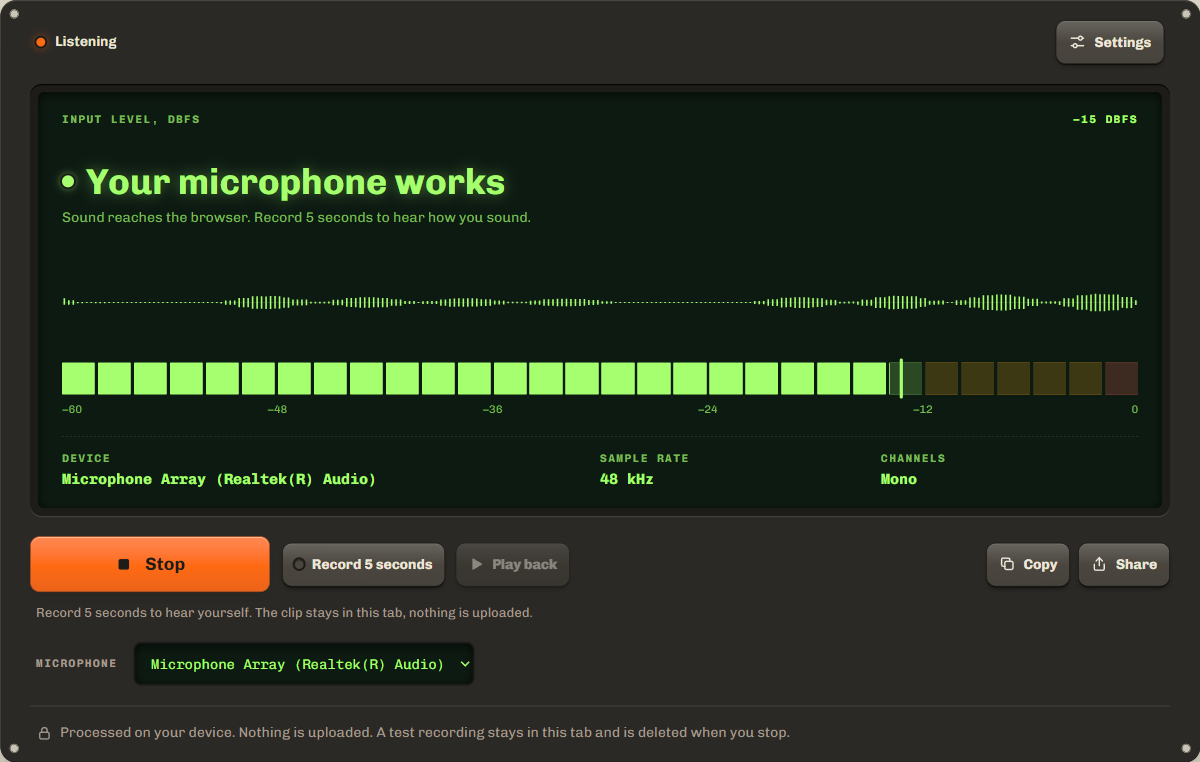
Tap Start, allow the microphone, then speak. The line here tells you if sound arrives.
- Device
- Not started
- Sample rate
- Not started
- Channels
- Not started
Settings
Processed on your device. Nothing is uploaded. A test recording stays in this tab and is deleted when you stop.
How to test your microphone
- Step 1Tap Start mic testYour browser asks for the microphone. Choose Allow. The test asks only when you tap.
- Step 2Speak or clapThe level bar and the waveform move with your voice, and the line on the screen says if your mic works.
- Step 3Record 5 secondsThen tap Play back to hear how you sound. The clip stays in this tab and is deleted when you stop.
Is my mic working? What the result means
Your mic works when the line on the screen says so: a real signal, such as your voice at arm's length, reached the browser. The bar shows the input level in dBFS, where 0 is the loudest the system can record. The thin marker holds the highest peak of the last 3 seconds.
| Result | Level | What it means |
|---|---|---|
| Your microphone works | Peaks above −45 dBFS | Sound reaches the browser. Record 5 seconds to check that it sounds clear. |
| Very quiet | Below −45 dBFS | A weak signal arrives. Move closer, speak up, or raise the input level. |
| Clipping | At 0 dBFS | Too loud: the top of the sound is cut off and distorts. Lower the input level. |
| Silent | Digital silence | Zeros arrive: the mic is muted, blocked by the system, or the wrong input is chosen. |
Mic not working on Windows, Mac, iPhone or Android
When the test says Silent or the browser cannot find a microphone, the cause is almost always a privacy setting or the wrong input. Check these on your device:
- Windows: Settings › Privacy & security › Microphone: turn on access for apps and for your browser. Then Settings › System › Sound › Input: choose the right microphone. Microsoft help
- Mac: System Settings › Privacy & Security › Microphone: turn on your browser. Then System Settings › Sound › Input. Apple help
- iPhone and iPad: Settings › Privacy & Security › Microphone, then turn on Safari or your browser app. Apple help
- Android: in Chrome, tap the icon left of the address › Permissions › Microphone. Also check Settings › Apps › Chrome › Permissions. Google help
If the test says the microphone is in use, close other apps that record, such as a call app or a voice recorder, then tap Try again.
Mic too quiet or too loud
A good level for speech peaks around −20 to −10 dBFS, the green part of the bar. If the result says Very quiet, move closer to the microphone first: half the distance is about 6 dB louder. Then raise the input level in your system sound settings. If the bar reaches the red end and the result says Clipping, lower the input level or move back. Clipping cannot be fixed later: the top of the sound is lost.
To see how loud the room itself is, use the decibel meter, which turns the same input into an estimate in dB.
Echo and noise: hear what a call sounds like
By default this test turns the browser's voice processing off, so the level and the recording are the raw microphone. In Settings you can turn on echo cancellation and noise suppression. The test then restarts with the same processing a video call uses. Record 5 seconds both ways and compare: with processing on, steady noise such as a fan drops away, and your voice can sound flatter.
Test your mic before a Zoom, Teams or Meet call
Run this mic check a few minutes before the call. Choose the microphone you will use in the list, speak at your normal volume, and play back the clip. Then open the audio settings of the call app and choose the same microphone there: apps keep their own choice, and that is the most common reason a mic works here but not in the call. Check your picture too with the camera test.
FAQ
Is my recording uploaded?
No. The 5 second clip is kept in the memory of this browser tab. It is never sent anywhere, and it is deleted when you tap Stop or leave the page.
Why does my mic sound different in Zoom or Teams?
Call apps turn on echo cancellation, noise suppression and automatic gain. This test is raw by default. Turn on voice processing in Settings to hear what a call sounds like.
Can I test a Bluetooth headset microphone?
Yes. Choose it in the Microphone list after you start. Many headsets drop to 16 kHz while the mic is on, so the sample rate shows 16 kHz and voices sound thinner. That is normal.
Does the mic test work on iPhone and Android?
Yes, in Safari, Chrome and other current browsers. On a phone, the browser picks the built-in microphone unless a headset is connected.
Why does it say Silent when the browser was allowed?
The system can still block or mute the mic. Check the privacy settings for microphone access, the mute switch on a headset, and which input is chosen in the sound settings.
Related tools
All audio toolsMeasure how loud the room is in dB with the same microphone.
Sing or play a note and see its pitch in Hz and cents.
Check your webcam picture, resolution and frame rate before a call.
Maintained by NabeelUpdated Oct 20, 2026.