Monitor Test: Check Your Screen With Test Patterns
A free online monitor and display test. Full-screen patterns for gradients and banding, black and white levels, gamma, sharpness, uniformity and color.
Ready: 14 patterns
Each pattern fills the screen, with what to look for in the hint.
Click, Space or the arrow keys for the next pattern, 1 to 9 to jump. Esc leaves.
Runs on your device. Nothing is uploaded or saved.
How to use the monitor test
- Step 1Set up the screenUse the screen's native resolution and 100% browser zoom. Turn off night light, and dim the room a little.
- Step 2Start the testTap Start test. Each pattern fills the screen with what to look for at the bottom. Tap or press an arrow key for the next one.
- Step 3Record what you seeOn Black level, White level and Gamma, tap the patch the hint asks for. Leave with Esc to see and copy your result.
How to test your monitor
Show test patterns full screen, one at a time, and compare what you see with what each pattern should look like. The patterns are drawn in your browser with exact values, one canvas pixel to one screen pixel, so what you see is what your screen does with them.
Before you start, set the screen to its native resolution and the browser zoom to 100%, and let the screen warm up for a few minutes. Sit where you normally sit. Work through the patterns in order, or jump with the Patterns menu or the number keys.
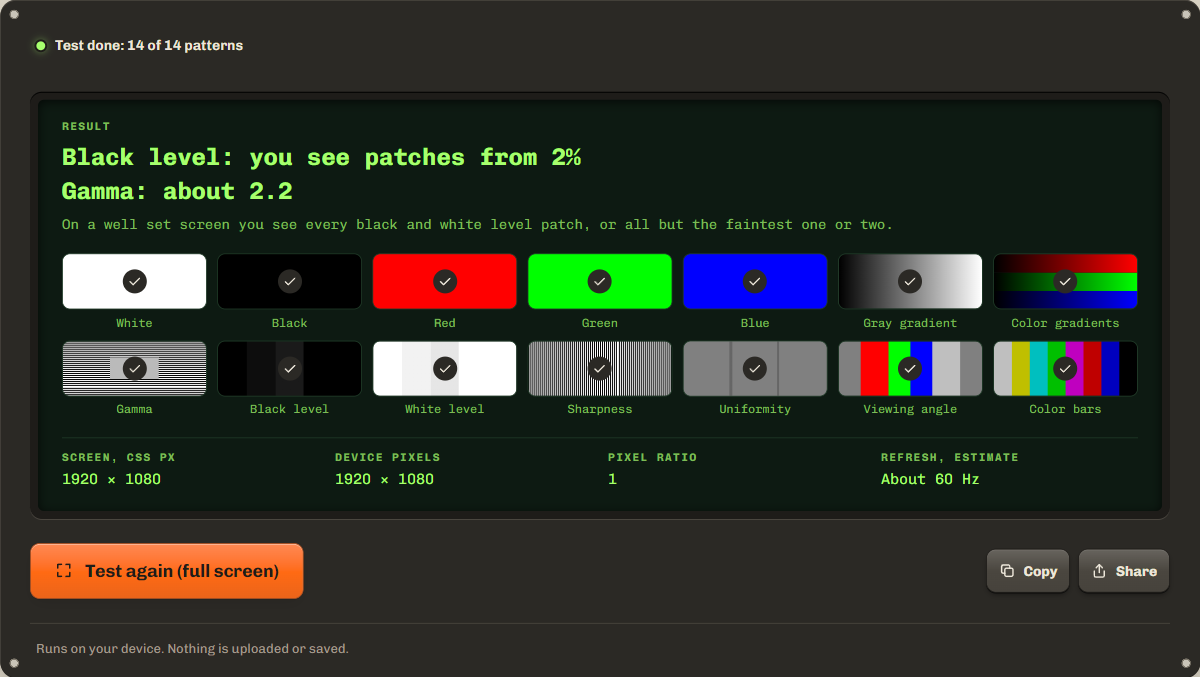
What each test pattern shows
Each pattern checks one thing. The hint bar on each says what to look for.
| Pattern | What it shows |
|---|---|
| White, black, red, green, blue | Dead or stuck pixels, tint, uneven patches |
| Gray and color gradients | Banding: steps in what should be a smooth fade |
| Gamma | Whether midtones are as bright as they should be |
| Black level | Shadow detail: brightness set too low or too high |
| White level | Highlight detail: contrast set too high |
| Sharpness | Blur, scaling and over sharpening on fine lines and text |
| Uniformity | Dark corners, tinted areas, clouding |
| Viewing angle | Color and contrast shift when you move your head |
| Color bars | Clean, distinct colors and an even gray scale |
Calibrate brightness and contrast with the level patches
Set brightness with the black level pattern and contrast with the white level pattern. The black level pattern shows ten patches from 1% to 10% above black. Raise the screen's brightness until you can see the faint ones, then lower it until black still looks black around them.
The white level pattern shows patches from 1% to 10% below white. If the faint ones vanish into the white, lower the contrast until they come back. On a well set screen you see every patch, or all but the faintest one or two. Tap the faintest one you see to record it.
Then check gamma: step back, squint, and find the patch in the middle of each lined block that blends in. 2.2 is the PC and web standard.
Banding, 8 bit and 10 bit
Banding is visible steps in a fade that should be smooth. An 8 bit signal has 256 levels for each of red, green and blue; 10 bit has 1,024. The browser draws these gradients with 256 levels, so on a wide screen each level is a band a few pixels wide, and very faint, even steps are normal.
Bands that are wide, uneven or tinted point elsewhere: a 6 bit panel, a color profile or night light mode, a picture mode on a TV, or a cable or setting that lowers the color depth. Because the browser draws 256 levels, this test cannot tell an 8 bit panel from a 10 bit one.
Troubleshooting and privacy
If full screen does not open, the test fills the window instead. Faint glow at the edges on black is likely backlight bleed: check it with the backlight bleed test. Faint shapes on gray can be burn-in: use the screen burn-in test.
Everything runs on your device and nothing is sent anywhere. Your picks stay in this tab and are gone when you leave or reload.
FAQ
Can I calibrate my monitor with this test?
You can set brightness, contrast and gamma by eye, which fixes the most common problems. Exact color calibration needs a hardware colorimeter and its software.
Why do I see bands in the gray gradient?
Faint, even steps can be normal: the browser draws 256 levels, so each step is a few pixels wide on a large screen. Uneven, wide or tinted bands point to the panel, its settings or a color profile.
Does this test work on a laptop, phone or TV?
Yes. On a phone, iPhone Safari cannot go full screen, so the test fills the window. On a TV, use its browser or connect a laptop with HDMI.
What gamma should my monitor have?
2.2 for normal PC and web use, which matches the sRGB standard most content is made for. Some screens have a gamma setting in their menu; pick the one where the 2.2 patch blends in.
Why are the fine lines gray or wavy?
The screen is scaling the picture. Set the native resolution, set browser zoom to 100%, and turn off any sharpness or overscan setting on a TV.
Related tools
All display testsFill the screen with colors, mark dead or stuck pixels and try the fixer.
Check an LCD screen for light leaking at the edges and IPS glow.
Find burned-in logos and taskbars on OLED and plasma screens.
Maintained by NabeelUpdated Oct 20, 2026.