Mouse Polling Rate Test
A mouse Hz test and polling rate checker: move your mouse to see its report rate in Hz, with the live rate, the average, the peak and a graph.
Ready
No reading yet
Click Start, then move your mouse in fast circles inside this box.
- Average
- Not measured
- Peak
- Not measured
- Spread
- Not measured
Settings
The live rate counts the reports in this much time. A short window reacts fast; a long one is steadier.
coalesced move events: pointermove with getCoalescedEvents(): every report, delivered once a frame.
Chosen by the test from what this browser supports. It is not a setting.
A web page sees the reports your browser passes on, so the result is the rate this browser receives. This browser passes on every report, once a frame, so the average is close. For the most accurate result, use Chrome or Edge, which send each report as it arrives.
How to test your polling rate
Move the mouse fast inside the box and read the average: that is the rate your browser receives, rounded to the nearest standard rate.
- Step 1Tap StartThe test starts listening to your mouse inside the box. It needs no permission.
- Step 2Move in circlesMove the mouse in fast, steady circles inside the box for 5 to 10 seconds. A mouse only reports while it moves.
- Step 3Tap Stop and readThe average is your result, rounded to the nearest standard rate. Peak and spread show how steady it was.
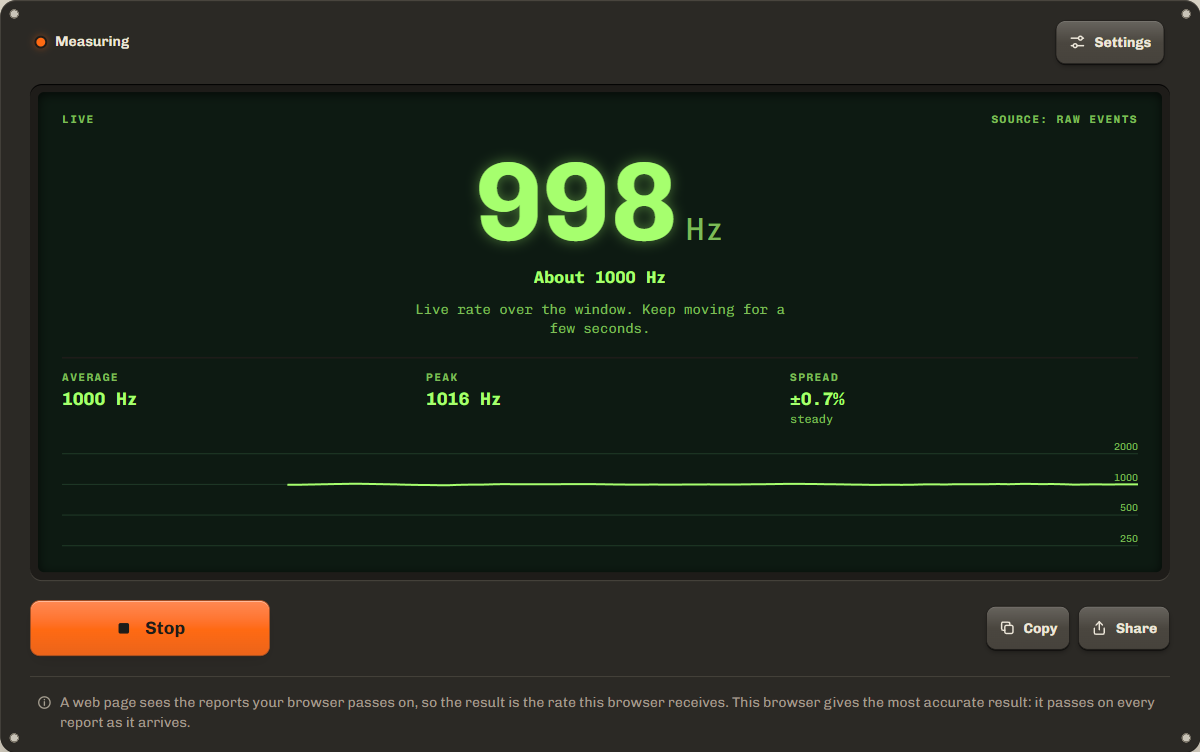
The live number counts the reports in the last half second (by default) while you move; pauses do not count, because a still mouse sends nothing. Peak is the highest live number. Spread is how far the live number moved around the average: under 5% is steady, over 15% is uneven. You can change the window length in Settings.
What polling rate means: 125 vs 500 vs 1000 vs 8000 Hz
Polling rate is how many times a second your mouse reports its movement to the computer. At 1000 Hz the computer gets a new position every millisecond; at 125 Hz, every 8 ms; at 8000 Hz, every 0.125 ms. Mice are sold with a few standard rates, and the test rounds its measurement to the nearest one, so a 1000 Hz or 8000 Hz polling rate test reads as about 1000 or about 8000 Hz.
| Polling rate | Time between reports | Where you find it |
|---|---|---|
| 125 Hz | 8 ms | Older and office mice, many Bluetooth mice. |
| 250 Hz | 4 ms | Some budget and wireless mice. |
| 500 Hz | 2 ms | A common setting on gaming mice. |
| 1000 Hz | 1 ms | The usual gaming mouse default. |
| 2000 Hz | 0.5 ms | High-end wireless gaming mice. |
| 4000 Hz | 0.25 ms | Some wired and wireless gaming mice, with a high-rate receiver. |
| 8000 Hz | 0.125 ms | The top setting on some gaming mice. Uses the most CPU. |
Why the result can read lower than your setting
A web page sees only the reports the browser passes on, so the browser, the USB port and the wireless mode can all lower the number. Most browsers send a normal move event at most once per screen refresh, as Chrome explains for aligned input events. A page that counts only those measures your screen, not your mouse.
This test uses the best source the browser has and says which one under the tool. Chrome, Edge and other Chromium browsers give the most accurate result: their pointerrawupdate event arrives for every report, as it comes in. Firefox and recent Safari hand over all the reports once a frame through getCoalescedEvents, which still gives a close average. Browsers also round event times (see the timeStamp reference); the test counts reports over time, so rounding does not change the average.
- USB port: plug the mouse or its receiver straight into the computer, not into a hub, a monitor or a keyboard port.
- Wireless mode: keep the receiver close, with a clear line to the mouse. In Bluetooth mode many mice report less often than with their own receiver.
- Mouse software: many gaming mice start at 500 or 1000 Hz. Pick the rate in the maker's app, then test again.
Does a higher polling rate matter?
Up to a point. Going from 125 Hz to 1000 Hz cuts the time between reports from 8 ms to 1 ms, which can make the pointer feel smoother and quicker in fast games. Beyond 1000 Hz the gain is under 1 ms, which matters most on a high refresh screen. 4000 and 8000 Hz use more CPU and, on wireless mice, more battery. If the spread is high at those rates, 2000 or 1000 Hz may feel better.
Troubleshooting and privacy
If the source says plain move events, try a recent Chrome or Edge, close heavy tabs and turn off battery saver on a laptop. The test only counts mouse events on this page. Nothing is recorded or sent, and the window setting is kept on your device.
FAQ
Which browser gives the most accurate result?
Chrome, Edge and other Chromium browsers, because they send each report as it arrives through pointerrawupdate. Firefox and recent Safari pass on every report once a frame, which gives a close average. The tool says which one your browser uses.
Why does the test show about 60 or 144 Hz?
Your browser gives the page one move event per screen refresh and no way to see the reports in between. The source on the screen then says plain move events. Try a recent Chrome or Edge.
Why is my 1000 Hz mouse showing 800 or 900 Hz?
Slow movement. A mouse skips a report when it has not moved since the last one. Move faster, in big circles, and the average comes closer to the set rate.
How do I change my mouse polling rate?
In the mouse software from the maker, or with a button under the mouse on some models. The browser cannot change it.
Does this test work with a touchpad or a pen?
No. It counts mouse reports only. Touchpads, pens and touch screens report in other ways.
Related tools
All device testsCheck every button and the wheel, and catch double clicking.
Check a game controller's sticks for drift.
Maintained by NabeelUpdated Oct 21, 2026.