Screen Burn-In Test
An OLED burn-in test and image retention test for TVs, phones and monitors. Full-screen colors and 25, 50 and 75% grays show burned-in logos and taskbars.
Ready: 8 screens
Grays and colors fill the screen. Look for faint shapes of a taskbar, logo or HUD.
Click, Space or the arrow keys for the next screen. M marks a shape. Esc leaves.
If you see shapes
- 1
Give it time first
Watch other content, or turn the screen off for a few hours. Image retention often fades on its own.
- 2
Run the screen's own refresh
Look in the TV or monitor menu for Pixel Refresher, Pixel Refresh or Panel Care. On LG OLED TVs: Settings, Picture, OLED Panel Settings, Pixel Refresher. It runs while the screen is off; do not unplug it.
- 3
Test again
Run this test again after the refresh. Shapes that are still there are burn-in, which a refresh cannot remove.
No color video can "fix" burn-in, because it does not repair worn pixels. The screen's own refresh is the safe tool.
Slow color cycle, for image retention
Image retention usually fades once the screen shows other content. This fills the screen with red, green, blue, white and gray, one after another, for the time you pick. It cannot remove burn-in.
Photosensitivity warning
The whole screen changes color every 6 seconds, with a 2 second fade. It never flashes fast, but large changes of bright color can still affect people with photosensitive epilepsy or migraine. Do not use it if you, or anyone who can see the screen, is sensitive to changing light. Look away while it runs.
Runs on your device. Marks stay in this tab and are gone when you leave.
How to check for burn-in
Fill the screen with an even mid gray and look for faint shapes of things that stay on screen: a taskbar, a channel logo, a news ticker, a game's health bar, a phone's status bar. Burned-in areas look darker or tinted, because those pixels have worn more than the rest.
- Step 1Set the screen upUse the screen for a few minutes first, so it is warm. Set your normal brightness and turn off night light or eye care modes.
- Step 2Start the testTap Start test. Grays and colors fill the screen one at a time. Tap, click or press an arrow key for the next one.
- Step 3Mark what you seeTurn on Mark what you see and tap each faint shape. Leave with Esc or Close to see where it showed.
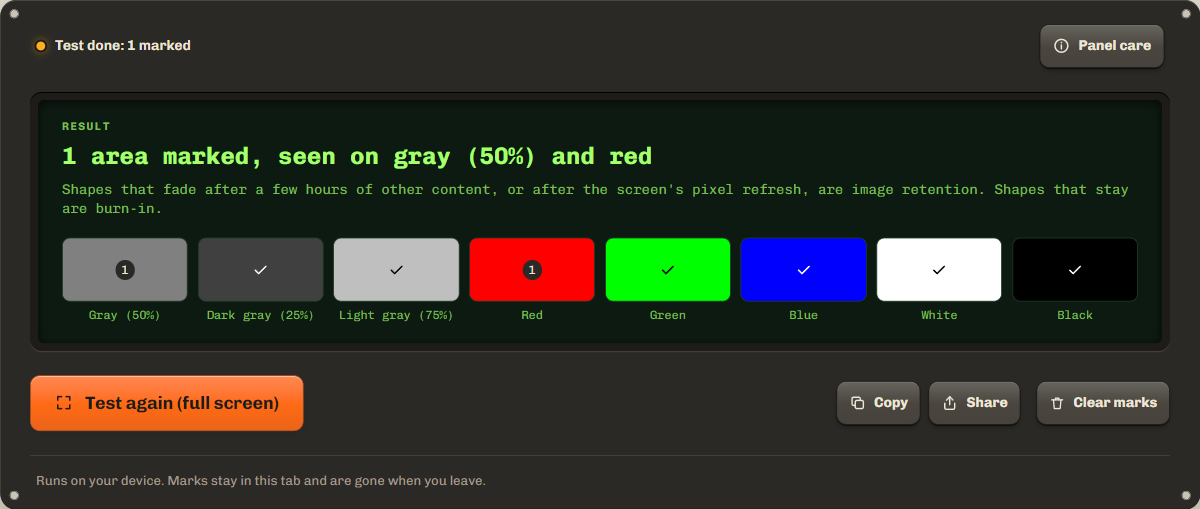
The burn-in test starts with 50% gray, then 25% and 75% gray, then red, green and blue, white and black. Mid gray shows burn-in best. Red, green and blue show which subpixels are worn: a shape that is clear on red but not on blue points to worn red subpixels. Look from your normal distance, then up close.
Burn-in vs image retention
Image retention is temporary and fades, while burn-in is permanent. If you see a shape, use the screen normally for a few hours, or run its pixel refresh, then test again. A shape that is gone was retention; a shape that stays is burn-in.
| Kind | What it is | How long it lasts | What helps |
|---|---|---|---|
| Image retention | A faint ghost of the last static image | Minutes to hours, then fades | Other content, rest, or the screen's pixel refresh |
| Burn-in | Worn pixels that are dimmer than their neighbors | Permanent | Nothing removes it. A refresh can only even it out a little |
OLED vs LCD: which screens get burn-in
OLED screens, and the older plasma TVs, can burn in, because each pixel makes its own light and wears with use. Pixels that show the same bright image for many hours age faster than the rest, and the difference becomes visible. That is why an OLED burn-in test matters most on TVs used for news or games, and on phones.
LCD screens, including LED and mini LED TVs, light the picture with a backlight, so their pixels do not wear the same way. They can show image retention, a ghost that fades, but permanent burn-in is rare. On an LCD, uneven light is more likely backlight bleed or clouding.
How to reduce or clear image retention
Give the screen other content or a rest, and let its own pixel refresh run. Most OLED TVs and monitors have one: LG describes Screen Shift, Logo Luminance Adjustment and a Pixel Refresher, and Samsung explains its Pixel Refresh for OLED TVs. It runs while the screen is off, so do not unplug it.
- Use the brightness you need, not the maximum, for long sessions.
- Let the taskbar or dock hide itself, and use a dark or changing wallpaper.
- Set the screen to turn off after a few minutes, rather than a screen saver.
- Leave pixel shift and logo dimming on.
The tool also has a slow color cycle in Panel care. It changes the whole screen every 6 seconds for 10 to 30 minutes, only after you read a photosensitivity warning, tick a box and press Start.
Burn-in fixers and screen burn fixes: what works
Nothing repairs true burn-in: the worn pixels stay worn. Burn-in fixer videos and pages that flash colors can help image retention fade, as any varied content does, but they cannot undo wear, and fast flashing adds wear of its own on an OLED. The screen's pixel refresh is the safe tool, and it can even out mild unevenness a little.
If shapes stay after a refresh, the fix is a new panel, so check the warranty. Some makers cover burn-in: for example, MSI announced a 3-year warranty on its OLED monitors that includes it. For a claim, take a photo of the gray screen at normal exposure and copy your result from the tool.
Troubleshooting and privacy
If full screen does not open, the test fills the window instead. For a TV burn-in test, open this page in the TV's browser, or connect a laptop with HDMI. If you see single dots rather than shapes, they are pixels: use the dead pixel test.
Everything runs on your device and nothing is sent anywhere. Your marks stay in this tab and are gone when you leave or reload.
FAQ
Is burn-in covered by warranty?
It depends on the maker, the model and the country. Some OLED monitors and TVs now include burn-in in the warranty, others exclude it. Search the warranty terms for the words burn-in and image retention before you buy.
Can a video fix burn-in?
No. Burn-in is worn pixels, and no video can restore them. Fast flashing videos add wear on an OLED. For temporary image retention, other content, a rest or the slow color cycle here does the job.
How long does OLED burn-in take?
It depends on brightness, the content and the panel. A static element at high brightness for many hours a day is the main risk. Mixed viewing at normal brightness rarely causes it.
Can a phone get burn-in?
Yes, phones with OLED screens can. The status bar, the navigation bar and the keyboard are the usual shapes. Run this phone burn-in test at a mid brightness and look closely at the gray screens.
Related tools
All display testsFind dead or stuck pixels on any screen with solid colors.
Check uniformity, gradients and black level with full-screen test patterns.
Check an LCD screen for light leaking at the edges and IPS glow.
Maintained by NabeelUpdated Oct 21, 2026.