Sound Test: Is Your Sound Working?
Play a test sound with one tap. If you hear nothing, this audio test shows why: volume, output device, Bluetooth or a muted tab.
Ready
Tap Play test sound.
A short chime plays. The meter shows it even if you hear nothing.
Output device
Or in your system: Open your system's sound settings and choose the speakers or headphones you want to use.
How to test your sound
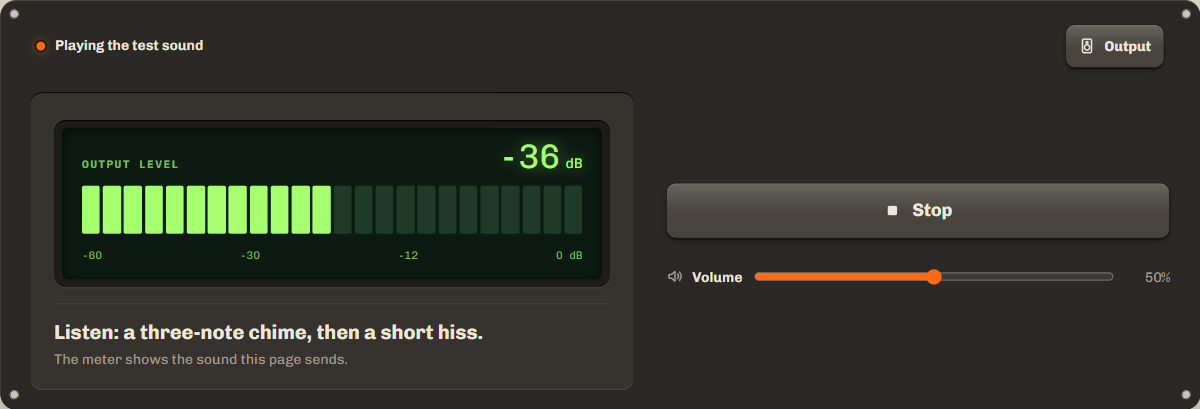
- Step 1Tap Play test soundA short chime and a soft hiss play, about 3 seconds. The level meter moves while it plays.
- Step 2Answer: did you hear it?Yes means your sound works. No starts short fixes, one at a time, each with Try again.
- Step 3Follow the fixVolume, output device, Bluetooth, a muted tab. Most people hear the sound again in the first two steps.
Sound check: what the meter tells you
The meter shows the sound this page sends to your device. That splits the problem in two. If the meter moves and you hear nothing, the page works and the cause is on your device. If the meter stays still, the browser did not play the sound.
| Meter | Heard it | What it means |
|---|---|---|
| Moves | Yes | Your sound works. |
| Moves | No | The page plays sound, so the cause is on your device: volume, mute, the output device or Bluetooth. |
| Stays still | No | The browser did not start the sound. Tap again, check the tab is not muted, or try another browser. |
No sound on Windows
- Select the speaker icon on the taskbar and raise the volume.
- Select the arrow next to the slider and choose the right output.
- Settings, System, Sound, Volume mixer: check that your browser is not turned down.
- Still nothing: Settings, System, Troubleshoot, Other troubleshooters, Audio.
Official help: Microsoft: fix sound problems
No sound on Mac
- Press the volume up key and check that the Sound icon in the menu bar is not muted.
- System Settings, Sound, Output: choose your speakers or headphones.
- Unplug headphones and disconnect Bluetooth headphones you are not using.
Official help: Apple: sound output settings
No sound on iPhone
- Press volume up while this page is open, so you change the media volume.
- Turn off Silent mode with the switch or the Action button.
- Control Center: press and hold the audio card, tap AirPlay and choose iPhone.
Official help: Apple: iPhone audio settings
No sound on Android
- Press volume up while this page is open: the slider that shows is media volume.
- Turn off Do Not Disturb if it blocks media on your phone.
- Quick Settings, media output: choose This phone or your headphones.
Official help: Google: volume and sound settings
Sound only from one side
If you hear the test sound from one speaker or one earbud only, the sound works but a channel does not. Check the balance setting and the cable, then run the speaker test for speakers or theheadphone test for headphones. Both play each side alone and tell you which one is silent or swapped.
Crackling or distorted sound
Lower the volume first: speakers crackle when they are pushed too hard. If the crackle stays at low volume, try another cable or port. With Bluetooth, move closer to the device and away from Wi-Fi routers. On a computer, close other apps that use a lot of power, then restart the browser.
FAQ
Why does the meter move but I hear nothing?
The page is playing sound, so the problem is after the browser: the device volume, mute, the output device, or Bluetooth headphones that have the sound.
Is this sound test the same as a speaker test?
No. This one checks that sound works at all. The speaker test checks left and right, the bass and the full range.
Can I choose the output device here?
In Chrome, Edge and Firefox on a computer, yes: open Output on the tool. Safari and most phones do not allow it, so use the system settings.
Does it record anything?
No. The test sound is made on your device. The only time the page asks for the microphone is to show output names in Chrome, and it turns it off at once.
Related tools
All audio toolsCheck left and right, the bass and the full range of your speakers.
Check left and right, the center and the bass of headphones and earbuds.
Play one exact frequency for longer tests.
Maintained by NabeelUpdated Oct 20, 2026.