Stick Drift Test
Plug in or pair your controller, press any button, and see whether the sticks drift.
Connect a controller and press any button
Connect a controller and press any button
Browsers show a controller only after a button press, so nothing appears until you press one.
- Xbox: USB cable, or Bluetooth: hold the pair button until the Xbox logo flashes fast.
- PlayStation: DualShock 4 and DualSense: USB cable, or Bluetooth: hold Share (Create) and PS until the light bar flashes.
- Switch Pro: USB cable, or Bluetooth: hold the small sync button on top.
- Other pads: Most USB and Bluetooth pads work. If the buttons look mixed up, the browser does not know the layout.
- USB or Bluetooth: both give the same reading. For Bluetooth, pair the pad in your computer or phone settings first, then press a button here.
Your browser reads the controller on this device. Nothing is sent or stored.
How to test your controller for stick drift
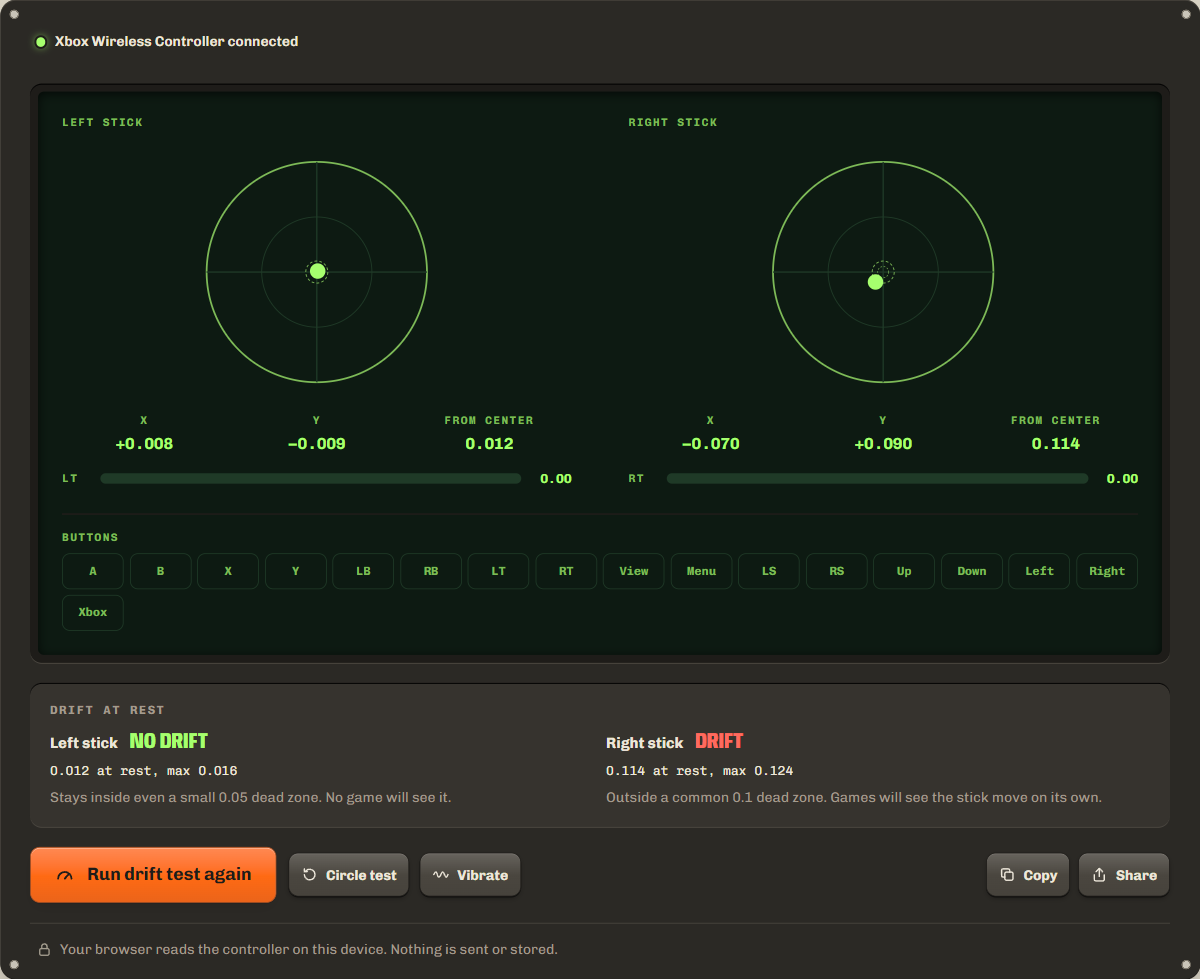
Let go of both sticks and watch the numbers: a stick that reads more than a small amount while nobody touches it drifts. This controller drift test, or joystick drift test, measures that for you, and the same screen works as a controller tester for every button and trigger.
- Step 1Connect and press a buttonPlug in the controller or pair it over Bluetooth, then press any button. Browsers show a pad only after a press.
- Step 2Tap Drift test and let goTake your thumbs off both sticks. The test waits a second, then measures each stick hands off for 5 seconds.
- Step 3Read the verdictEach stick gets no drift, slight drift or drift, with its resting offset and the largest value seen. Run Circle test to check the outer edge.
Reading the result: drift at rest, deadzone and circularity
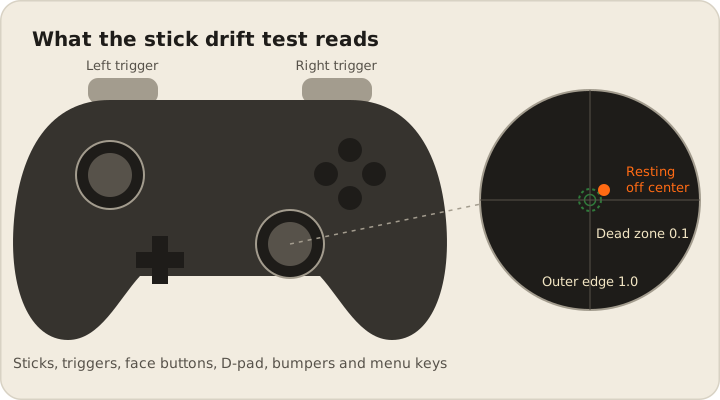
The verdict comes from the largest distance from the center during the 5 hands-off seconds, because that is what a game sees at its worst moment. A dead zone is the small circle around the center that a game ignores: 0.05 is a small one that players pick for a fast response, and 0.1 is a common default.
| At rest | What it means | Verdict |
|---|---|---|
| Under 0.05 | Inside even a small dead zone. No game sees it. | No drift |
| 0.05 to 0.1 | Outside a small dead zone, inside a common one. Most games hide it; a low dead zone setting shows it. | Slight drift |
| 0.1 or more | Outside a common dead zone. The camera or character moves on its own. | Drift |
Circle test checks the outer edge. Roll each stick slowly around its rim: the test draws the outline and gives the average outer radius and the circularity error. A radius well under 1.0 means the stick never reaches full tilt in some directions. Some pads reach past 1.0 at the diagonals, which raises the error without being a fault.
Stick drift on PS5, Xbox, Switch and Steam Deck controllers
Every controller with analog sticks can drift, and the test works the same for each: connect, press a button, let go. What differs is how you connect it and what you can do about drift.
PS5 DualSense
For a PS5 controller drift test, connect the DualSense with a USB cable or pair it over Bluetooth. The PS5 has no stick calibration in its settings: update the console and the controller, then reset the controller with the small button on its back, as PlayStation help describes. The DualSense Edge has stick modules you can replace.
Xbox controllers
For an Xbox controller drift test, connect with USB or Bluetooth. The Xbox Accessories app has a recalibration tool and stick settings including dead zones. Microsoft notes that calibration cannot fix drift from normal wear.
Switch Joy-Con
For a Joy-Con drift test, pair the Joy-Con over Bluetooth; a computer often sees each Joy-Con as its own controller, so pick each one in the Controller list. On the console, use System Settings, Controllers and Sensors, Calibrate Control Sticks, as Nintendo explains.
Steam Deck
On a Steam Deck, open Settings, Controller and the calibration settings to recenter the sticks and raise the dead zone. If a stick still drifts, Valve sells genuine replacement thumbsticks and repair guides through iFixit.
How to fix stick drift
Calibration and a higher dead zone help with slight drift; worn parts need a repair. Most sticks measure their position with potentiometers, a contact that slides over a track, which wears and collects dust over time.
- Calibrate and set a dead zone: use the console's or app's tool above. In Steam on a PC, Settings, Controller, then the calibration settings recenter the sticks for games that use Steam Input.
- Clean: with the pad off, brush gently around the base of the stick and wipe it with a dry cloth, as Nintendo describes. Do not spray liquid into the stick.
- Hall effect sticks: Hall effect and TMR sticks read a magnet with a sensor, with no sliding contact, so they do not wear the same way. Many repair shops fit them.
- Warranty: drift inside the warranty is a fault, so contact the maker first. Opening the pad usually ends the warranty.
Controller not detected, and privacy
The Gamepad API hides controllers until you press a button, so a page cannot see them by accident. If nothing appears after a press, try another USB cable or port, pair again over Bluetooth, and close apps that take over the pad. With several pads connected, pick one in the Controller list. The browser reads the controller on your device. Nothing is sent or stored.
FAQ
Why isn't my controller detected?
Press a button on it: browsers reveal a controller only after a press. If it still does not appear, check that it works in your system settings, try a USB cable, and close apps such as Steam that may hold it.
Is a little drift normal?
Yes. Few sticks rest at exactly 0.000. Values under 0.05 sit inside even a small dead zone, so games ignore them. Drift becomes a problem above about 0.1, a common default dead zone.
Does it work on a phone?
Yes, in most browsers on Android, and in Safari on iPhone and iPad with a supported pad. Pair the controller over Bluetooth first, then press a button.
Why is the Vibrate key missing?
It shows only when the browser can make the controller vibrate. Chrome and Edge support it for many pads; Firefox and Safari often do not.
Related tools
All device testsPress every mouse button and catch unwanted double clicks.
Measure how often your mouse reports, in Hz.
Maintained by NabeelUpdated Oct 21, 2026.