Camera Test: Online Webcam Test
Test your webcam or phone camera in the browser. See the live picture with its real resolution and frame rate, and take a snapshot.
Tap Start camera to begin
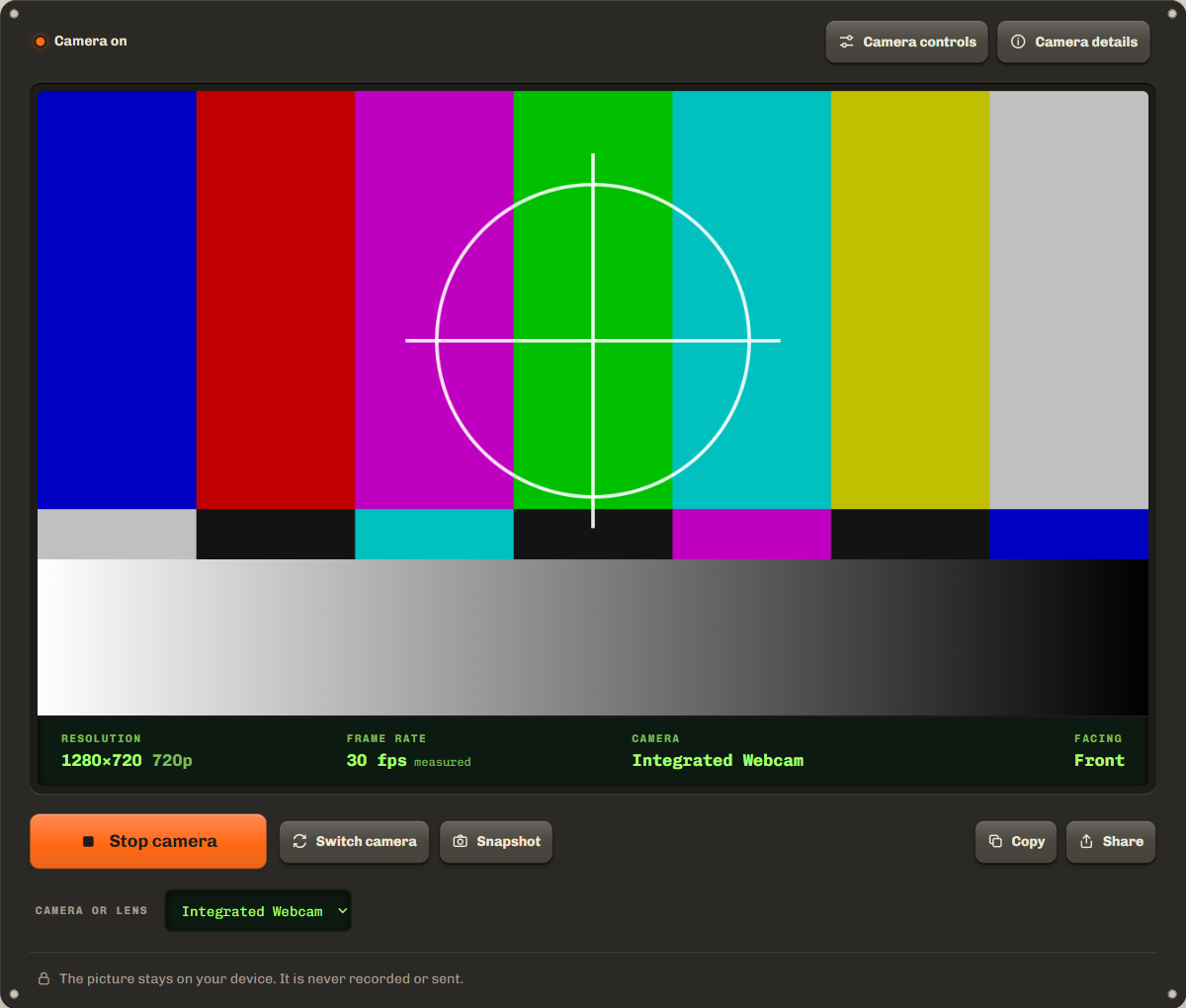
Tap Start camera and allow it. The picture shows here, with its real size and frame rate.
- Resolution
- Not started
- Frame rate
- Not started
- Camera
- Not started
- Facing
- Not started
Camera controls
Start the camera to see what it lets this page change: size, frame rate, zoom, torch, focus and more.
Camera details
Start the camera to see what your browser reports about it.
The picture stays on your device. It is never recorded or sent.
How to test your webcam
- Step 1Tap Start cameraYour browser asks for the camera. Choose Allow. The test asks only when you tap.
- Step 2Check the pictureThe strip under the picture shows the real resolution, the frame rate, the camera name and which way it faces. Pick another camera or lens in the list.
- Step 3Open Camera controlsPick a resolution, an aspect ratio and a frame rate, and the test shows what the camera really gives. Zoom, torch, focus and exposure show up when your browser allows them. Camera details lists all it reports.
Camera not working on Windows, Mac, iPhone or Android
When the camera stays black or the test says it is blocked, a privacy setting or another app is the usual cause. Check these on your device:
- Windows: Settings › Privacy & security › Camera: turn on camera access and access for desktop apps, which covers your browser. Microsoft help
- Mac: System Settings › Privacy & Security › Camera: turn on your browser, then quit and reopen it. Apple help
- iPhone and iPad: Settings › Privacy & Security › Camera, then turn on Safari or your browser app. Apple help
- Android: in Chrome, tap the icon left of the address › Permissions › Camera. Also check Settings › Apps › Chrome › Permissions. Google help
If the test says another app is using the camera, close Zoom, Teams, FaceTime, OBS or any other app that shows your picture, then tap Try again. On Windows, a webcam often works in only one app at a time. Some laptops also have a privacy shutter or a camera key that turns the camera off: open it before you test.
Webcam resolution explained: 720p, 1080p and 4K
Resolution is the size of the picture in pixels, width by height. The test shows the size the camera really sends, not the number on the box. This test starts at 720p, so open Camera controls to see if yours can go higher.
| Name | Pixels | Where you find it |
|---|---|---|
| 480p | 640×480 | Old webcams. Soft, but fine for a small call window. |
| 720p (HD) | 1280×720 | Most laptop webcams. Clear in a normal video call. |
| 1080p (Full HD) | 1920×1080 | Good external webcams and phones. Sharp on a full screen. |
| 1440p (QHD) | 2560×1440 | A few high-end webcams and many phone cameras. |
| 4K (Ultra HD) | 3840×2160 | Some external webcams and most phone back cameras. |
| 8K | 7680×4320 | Only some top phones, in their own camera app. A web page gets less. |
Call apps often send less than your camera can do, to save bandwidth. A sharp camera still helps, because the app starts from a better picture.
Change the camera resolution
Open Camera controls and pick a resolution, an aspect ratio and a frame rate: the test asks the camera for them and shows the size it really gives. Keys above the largest size your camera reports are off, with the reason. The list comes from what the browser says the camera can do (getCapabilities on MDN).
The browser treats your pick as a wish, not an order, and gives the nearest size it can (applyConstraints on MDN). So the test prints what you asked for next to what arrived. When the two differ, the strip and the result line show the real size. Tap Test the sizes to ask for each size in turn and see which ones your camera reaches. Some webcams give a high size only at a lower frame rate, so check both numbers.
Ultra-wide and zoom on phones
On most phones each lens shows up as its own camera, so pick the ultra-wide in the Camera or lens list, or zoom below 1x where the browser allows it. The test puts the lens first in the list when the name tells it.
- iPhone and iPad: Safari names each lens, such as Back Ultra Wide Camera and Back Telephoto Camera. Back Dual Wide Camera and Back Triple Camera combine lenses and switch between them as you zoom. Every browser on iPhone uses Safari's engine, so Chrome there works the same.
- Android: Chrome names lenses camera2 0, camera2 1 and so on, with only the side they face. Try each back camera to find the ultra-wide. Chrome on Android also gives web pages the most controls: zoom, torch, focus and exposure, where the phone allows them.
Safari and Firefox let web pages change little beyond size and frame rate. When a control is missing, the test says your browser does not let web pages change it, so you know it is the browser and not your camera. On a computer, Chrome and Edge can zoom only a webcam that supports pan, tilt and zoom, after you allow it (Chrome developers).
Frame rate and lighting
Frame rate is how many pictures the camera sends each second. 30 fps looks smooth in a call, and 15 fps or less looks choppy. In a dark room most webcams slow down on their own, to let more light in for each frame, so a low frame rate often means too little light, not a broken camera. Face a window or a lamp and watch the number on the strip go up. Light from behind you makes your face dark, so turn your back to the wall, not to the window.
Test your camera before a call
Open this webcam test a few minutes before a Zoom, Teams or Meet call. Choose the camera you will use, check that your face is in the middle of the picture and well lit, then stop the test so the call app can use the camera. In the call app, choose the same camera in its video settings. Test your microphone too with themic test.
FAQ
Is my picture recorded or sent anywhere?
No. The picture goes from the camera to this page and nowhere else. A snapshot stays in this tab until you download or delete it, and it is deleted when you stop the camera.
Why does my picture look mirrored?
The front camera is shown like a mirror, the way most call apps show your own view. Others see you the right way round. Tap Mirror to turn it off.
Why is my 1080p webcam showing 720p?
The test starts at 720p. Open Camera controls and pick 1080p, or tap Test the sizes. If it still stops at 720p, the camera, its USB port or the browser limits it. Try another USB port.
Why can I not zoom or turn on the torch?
The browser decides which controls a web page gets. Chrome on Android gives the most. Safari, Firefox and most computers give little, and the test then says your browser does not let web pages change it.
What does measured or reported frame rate mean?
Measured means the page counted the frames that really arrived over the last second. Reported means the browser cannot count frames, so the test shows the rate the camera says it runs at.
Can I test the back camera on my phone?
Yes. After you start, tap Switch camera to go between the front and the back camera, or pick a lens, such as the ultra-wide, in the Camera or lens list.
Related tools
All device testsCheck your microphone with a live level and a 5 second playback.
Fill your screen with plain colors to find dead or stuck pixels.
Maintained by NabeelUpdated Oct 20, 2026.