EXIF Remover: Remove Metadata from Photos
See the GPS location, camera and date hidden in your photos, then remove them. The photos never leave your device.
Drop photos to see and remove their metadata
Drop photos here
JPEG, PNG and WebP are cleaned. HEIC and AVIF are read only. Add as many as you like.
Photos are read and cleaned on your device. Nothing is uploaded, and the image data is copied as it is, so quality does not change.
How to remove EXIF data from a photo
This EXIF data remover works on the photo files you already have. Add one photo or a whole folder, read what each one shows, and download clean copies. Your originals stay as they are.
- Step 1Add your photosDrop JPEG, PNG or WebP photos on the tool, or tap Choose photos. You can add many at once.
- Step 2Check what they showEach photo lists its GPS location, camera, serial number, date and software. An orange card warns you when a location is found.
- Step 3Remove and downloadPick Remove all or Keep date and orientation, tap Remove metadata, then save each photo or all of them as one ZIP.
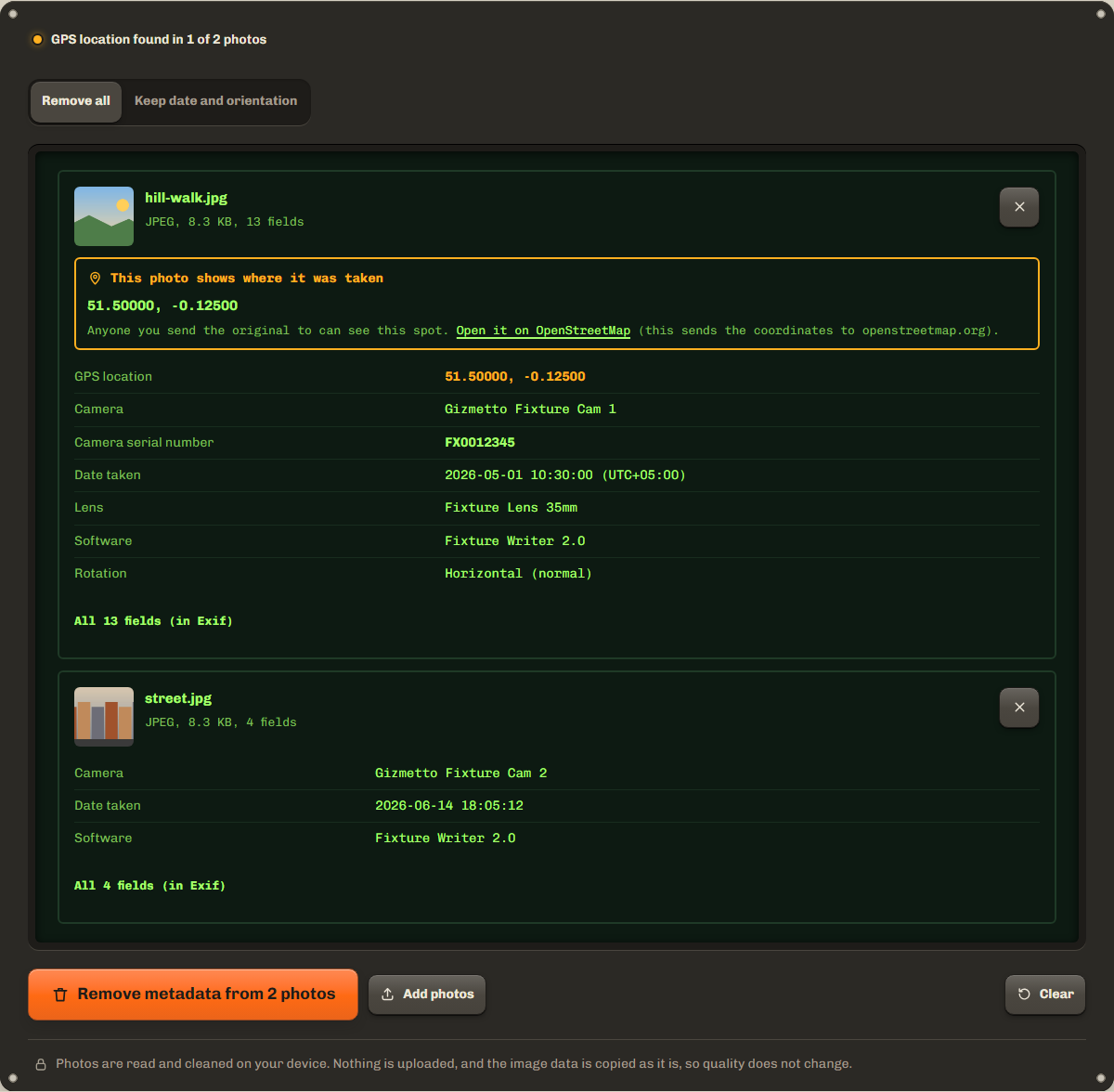
To strip EXIF from a JPEG, the tool cuts out the Exif, XMP, IPTC and comment blocks and any extra data after the picture. For PNG it drops the text, eXIf and time chunks, and for WebP the EXIF and XMP chunks. The color profile stays, so colors look the same. After cleaning, the tool reads each new file again and tells you what is left, which is nothing unless you chose to keep the date. The fields are read with the open source exifr library.
What EXIF data shows
EXIF is a block of fields your phone or camera writes into every photo. It is useful for sorting photos by date, but it also travels with the file when you send it. A metadata viewer like the one above shows all of it. These are the fields that say the most about you:
| Field | Tags | What it shows |
|---|---|---|
| GPS location | GPSLatitude, GPSLongitude, GPSAltitude | Where the photo was taken, often to within a few meters, and how high up |
| Camera model | Make, Model, LensModel | The phone or camera and the lens, such as the maker and model name |
| Serial number | BodySerialNumber, LensSerialNumber | The one camera or lens that took it, which can link photos you post in different places |
| Date and time | DateTimeOriginal, OffsetTimeOriginal | The second the photo was taken and the time zone you were in |
| Software | Software, CreatorTool | The phone system version or the app that edited the photo |
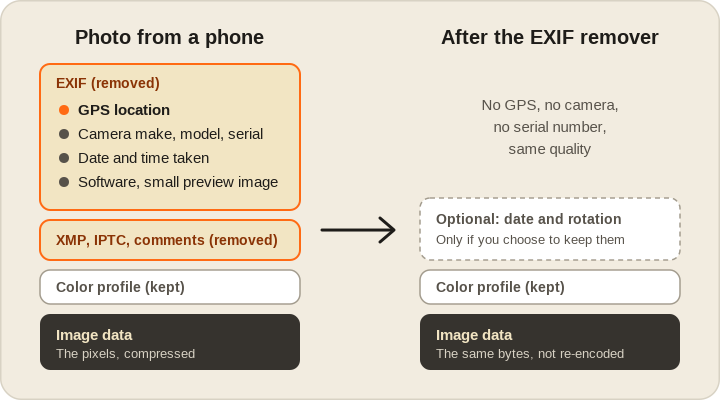
Many photos also hold a small preview image inside the Exif block, and edited photos often carry XMP with the edit history. Both go when you remove the Exif and XMP blocks.
Remove location from a photo before you post it
Most phones save the GPS position in every photo while location access is on for the camera. A photo taken at home and posted for sale, sent to a stranger or put on a forum can show where you live. Add the photo to the tool: if it holds a location, an orange card shows the coordinates and a link that opens the spot on OpenStreetMap, so you can see what others would see. The map opens only if you tap the link, and that sends the coordinates to openstreetmap.org.
Tap Remove metadata and save the clean copy, then post that copy. Keep in mind that a photo can still show where it was taken through what is in it: a street sign, a house number or a view from a window. No metadata remover can change that.
Remove metadata on iPhone, Android and Windows without a tool
iPhone and iPad
To remove the location from one photo, open it in Photos, tap the More button, tap Adjust Info, then Adjust Location, then No Location. To send photos without the location, select them, tap the Share button, tap Options and turn off Location; the Share Sheet then shows Location Not Included. To stop the camera saving locations at all, go to Settings, Privacy and Security, Location Services, Camera and tap Never. These steps are from Apple's guide, published September 2026.
Android
Google Photos can remove only a location it estimated or one you added by hand: open the photo, tap More, then Edit, then Remove location. Google's help says that a location your camera added cannot be removed in Google Photos (Google Photos help). For those photos, use the tool on this page, or turn off the location option in your camera app's settings before you take photos. Its name depends on the phone maker.
Windows
Select the photos in File Explorer, right-click and pick Properties, go to the Details tab and click Remove Properties and Personal Information. You can then create a copy with all possible properties removed, or tick single properties to remove from the file. These are the steps in Microsoft's tip, written for Windows 7 Explorer. Check the Details tab of the copy after: it removes only the properties Windows can edit for that file type.
Why nothing is uploaded
Many online metadata removers send your photo to a server, clean it there and send it back. This one does the work in your browser: the page reads the file from your device, edits its bytes in memory and hands you the new file as a download. No photo, field or file name is sent anywhere, and nothing is stored after you close the page. That is also why it is fast: there is no upload to wait for.
FAQ
Does removing EXIF lower the quality?
No. The tool cuts the metadata blocks out of the file and copies the image data byte for byte. It never draws the photo on a canvas and saves it again, so nothing is re-compressed. The file only gets smaller by the size of the metadata.
Can I keep some fields?
Yes, two. Pick Keep date and orientation to keep the date and time the photo was taken (with its time zone) and the rotation flag. Everything else goes, GPS included. In Remove all, the rotation flag still stays when a photo needs it to show upright, because it says nothing about you.
Does it support HEIC photos from an iPhone?
It reads HEIC files and shows their fields, GPS included, but it does not clean them: HEIC cannot be cleaned here without re-encoding the picture. On an iPhone, turn off Location in the Share Sheet Options before you send a photo, or set Settings, Camera, Formats to Most Compatible so new photos are saved as JPEG.
Is there a limit on how many photos I can clean?
No limit is set. All photos are held in your browser's memory while the page is open, so very large batches on an older phone can be slow. Clear the list between batches if that happens.
Does it work on a phone?
Yes. Tap Choose photos to pick from your photo library or your files. Some phones hand a browser a copy of the photo rather than the original, so if a photo shows fewer fields than you expect, pick it from the Files app instead.
Are my photos uploaded?
No. The page reads and edits the files in your browser with JavaScript. No photo, field or file name is sent to a server or stored.
Related tools
All image toolsOpen JPEG XL files and convert them to JPG, PNG or WebP.
Check your webcam or phone camera, its resolution and lenses.
Check a screen for dead or stuck pixels.
Maintained by NabeelUpdated Oct 22, 2026.
Do social apps remove metadata?
Some do, for the copy that other people see, but each app decides this for itself and can change it at any time. As of October 2026 we could not find a help page from the large social apps that says which fields they remove, so do not count on it. Even when the public copy is clean, the app may keep your original file. Email attachments, cloud storage links and files sent as documents go out as they are, with all their metadata.
Apple's own guide says that when photos with location metadata are shared, the people you share them with may be able to see where they were taken (Manage location metadata in Photos). Google says that hiding locations in Google Photos does not affect photos you share outside Google Photos (Understand, find and edit your photos' locations). The safe habit is to remove metadata yourself before you share.