Surround sound test (5.1 and 7.1)
Tap a speaker on the room diagram to hear it alone, or play all of them in turn, to check every channel of a 5.1 or 7.1 system.
Tap a speaker to start
--
Tap a speaker or Play all. The page then asks your browser how many channels it can use.
Each speaker plays three bursts of pink noise. The subwoofer plays a 50 Hz tone. Start with the volume low.
How to test 5.1 surround sound
This surround sound test plays a short sound on one speaker at a time, so you can hear that each one is connected and in the right place. Choose 5.1, then:
- Set your computer's speaker setup to 5.1 (on Windows in the Sound settings, on a Mac in Audio MIDI Setup), and turn the volume down.
- Tap Play all speakers. Each speaker plays three bursts of pink noise, going around the room, and the subwoofer plays a 50 Hz tone last.
- Check that each sound comes from the speaker named on the screen. Tap one speaker to hear it again.
- Read the line under the diagram. If it says stereo, see the section on stereo below.
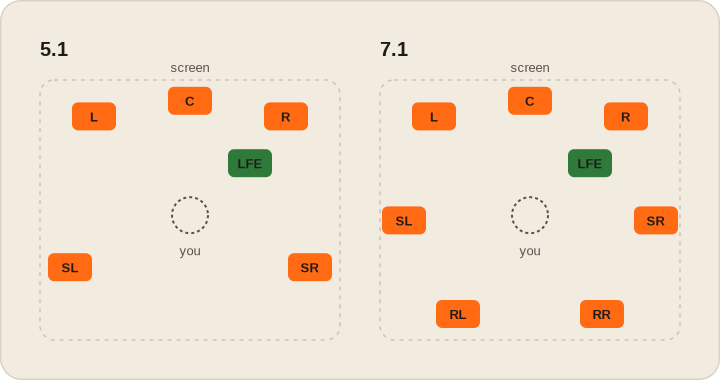
The page sends each sound to one channel of the output. For 5.1 the order of the channels is the one listed on MDN for the Web Audio API:
| Channel | Speaker |
|---|---|
| 1 | Front left (L) |
| 2 | Front right (R) |
| 3 | Center (C) |
| 4 | Subwoofer (LFE) (LFE) |
| 5 | Surround left (SL) |
| 6 | Surround right (SR) |
To check the subwoofer more closely, with tones from 20 to 120 Hz, a slow sweep for rattles and a phase check from your seat, use the subwoofer test.
How to test 7.1
A 7.1 system adds a pair of speakers: the surround speakers move to the sides, and two rear speakers sit behind you. Choose 7.1 and play all, the same way. The channel order follows the 7.1 home theater layout in Microsoft's channel mask documentation: front left, front right, center, LFE, back left, back right, side left, side right.
If the side and rear speakers seem swapped, check which outputs of your receiver or sound card they are wired to. Some equipment names the pairs differently, for example "surround" and "surround back".
Why your browser only plays stereo
A web page can only use as many channels as the browser gives it. The page reads that number from maxChannelCount, the most channels the output device can handle. When it is 6 or more, the test sends each sound to one speaker. When it is 2, the page cannot reach the center, rear or subwoofer channels on their own, so the test plays in stereo: left speakers from the left, right speakers from the right, center and subwoofer from both, and the line under the diagram says so.
Things to check when you only get stereo:
- The speaker setup of your computer is set to 5.1 or 7.1, not stereo.
- The output device the browser uses is the one connected to your surround system, such as the HDMI output to the receiver.
- Close and reopen the browser after you change the speaker setup, then reload this page.
- Try another browser. Browsers differ in how many channels they give a page.
Testing a 7.1 gaming headset
A headset sold as 7.1 often has one speaker for each ear and creates the surround effect with virtual surround: processing that makes sound seem to come from places where there is no speaker. If the headset's software shows it to your computer as a 7.1 device, the browser may report 8 channels, and each button of the test should sound from its own direction. If it shows as a stereo device, the test plays in stereo, like any pair of headphones.
For a plain check of left and right on any headphones, the headphone test is quicker.
FAQ
Why does every speaker sound like it comes from the front?
Your browser is giving the page only two channels, so the test falls back to stereo. Set your computer's speaker setup to 5.1 or 7.1 first, and check that the sound goes to the receiver or sound card that drives the surround speakers. The status line on the tool says how many channels the browser reports.
The left and right surround speakers are swapped. What do I do?
Swap the two speaker wires at the receiver or amplifier, or swap the speakers' positions. If the side and rear speakers of a 7.1 system are swapped, the wires for those two pairs are crossed.
Why can I not hear the subwoofer?
Check that the subwoofer is on and its volume is up, and that the speaker setup on your computer or receiver includes a subwoofer. The test plays a 50 Hz tone on the LFE channel, which some small speakers cannot play at all.
Can I test surround sound on a phone?
You can run the test, but phones usually give a web page two channels, so it will play in stereo. A real surround test needs a computer or console connected to a 5.1 or 7.1 system that the browser can see.
Does it work with Dolby Atmos or DTS?
No. The page sends plain channels, one per speaker, not a Dolby or DTS stream, and it has no height channels. It checks that each speaker of a 5.1 or 7.1 setup is connected and in the right place.
Related tools
All audio toolsLeft and right, sweeps and a bass test for stereo speakers.
Check left, right and balance on headphones and earbuds.
Measure the delay of Bluetooth headphones or speakers.
Low tones, a slow bass sweep and a phase check for your subwoofer.
Play any low tone to find where your subwoofer fades.
Maintained by NabeelUpdated Nov 19, 2026.