Screen Tearing Test
Moving bars at a speed you set, with your measured refresh rate and skipped frames, and an honest note on what a browser can show.
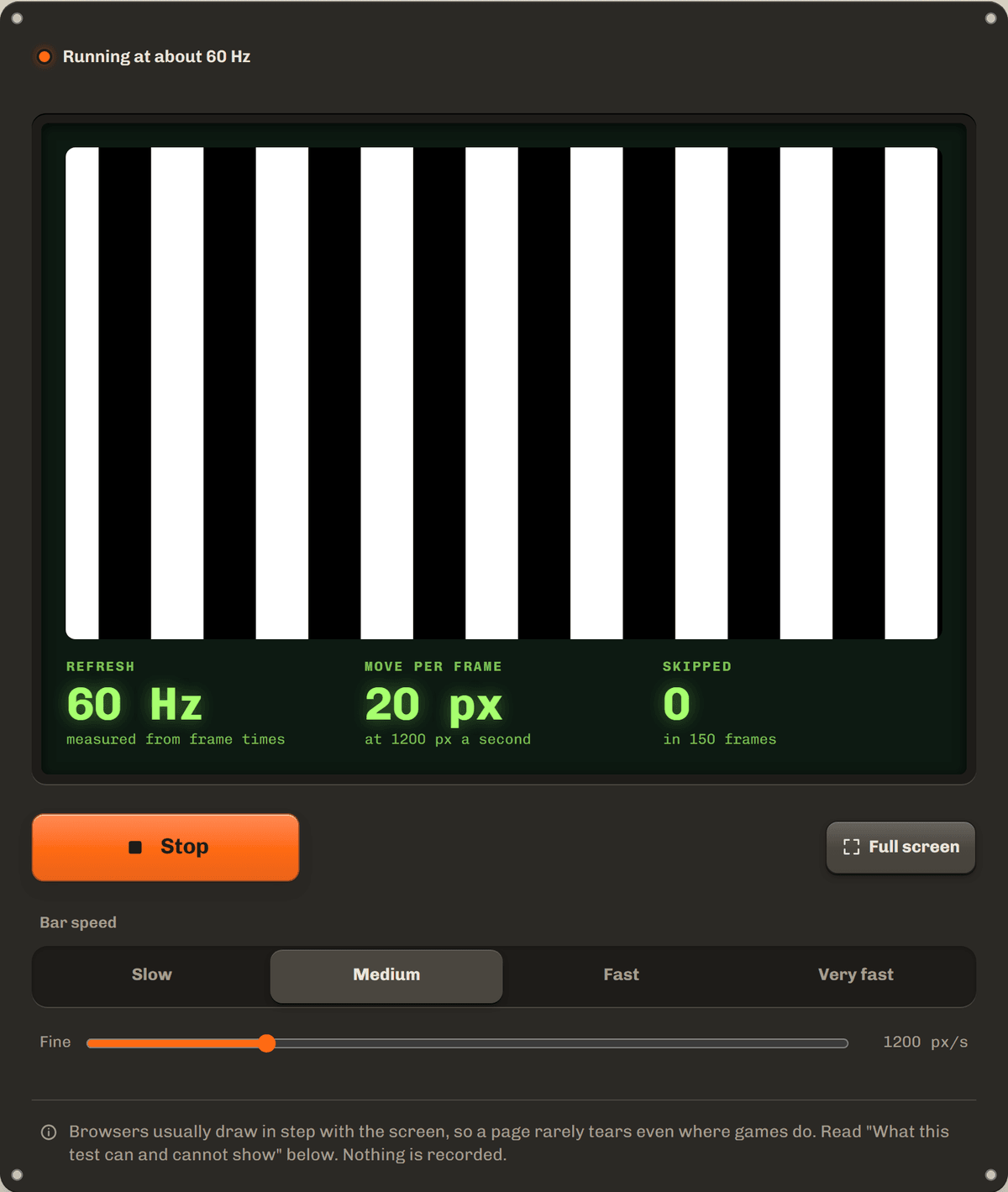
Tap Start to move the bars
- Refresh
- --measured from frame times
- Move per frame
- --at 1200 px a second
- Skipped
- --frames the page missed
Browsers usually draw in step with the screen, so a page rarely tears even where games do. Read "What this test can and cannot show" below. Nothing is recorded.
How to use the screen tearing test
- Step 1Tap StartWhite bars move across a black area. The tool times every frame and shows your refresh rate.
- Step 2Go full screen and speed upTap Full screen, then try Medium, Fast and Very fast. Tearing is easiest to see on fast, wide movement.
- Step 3Look for a breakA tear is a horizontal line where the top part of the bars and the bottom part do not line up.
- Step 4Answer and shareTap Stop, say whether you saw tearing, and copy the result with the refresh rate and skipped frames.
The bars move a set number of pixels each second, so Move per frame shows how far they jump between two refreshes. At the same speed, a 144 Hz screen moves them in smaller steps than a 60 Hz screen, which is why fast motion looks smoother on it.
What screen tearing is
Screen tearing is when a display shows parts of more than one frame in a single refresh (Wikipedia). It happens when the frames sent to the screen are not in step with its refresh. The new frame replaces the old one partway down the screen, so moving objects look cut by a horizontal line. It shows most on fast sideways movement, such as a camera pan in a game, which is why this test uses vertical bars that move sideways.
What this test can and cannot show
A web page draws its animation once per frame with requestAnimationFrame, which MDN says generally runs at the display's refresh rate. As web.dev's rendering guide puts it, the browser needs to match the device's refresh rate and produce one frame for each refresh. In practice, browsers present whole frames in step with the screen, much like V-Sync. So on most computers and phones this page will not tear, even on a monitor where a game with V-Sync off tears badly.
What the test does show:
- The refresh rate your browser actually runs at, from the time between frames. It tells you if a 144 Hz monitor is really at 144 Hz.
- Skipped frames: hitches where the page missed a refresh, which you see as stutter.
- How smooth and sharp fast motion looks on your panel at each speed.
- Tearing, on setups where the browser's frames do reach the screen out of step.
What it cannot show: whether your games tear, because each game has its own V-Sync and frame rate, and whether G-Sync or FreeSync work, because a browser animation does not change its frame rate the way a game does.
Reading the result
| What you see | What it means |
|---|---|
| Straight, solid bars that move evenly | Frames reach the screen whole and on time. This is the usual result in a browser. |
| A horizontal break across the bars, in one place or moving | Tearing: the screen showed parts of two frames in one refresh. |
| Bars that jump or hitch now and then | Stutter: the page missed a refresh. Skipped counts these. |
| Refresh lower than your monitor's rating | The display or the browser runs at a lower rate. Check the refresh rate setting. |
| Blurry or ghosted edges on the bars | Motion blur from the panel's response time or sample and hold, not tearing. |
V-Sync, G-Sync and FreeSync
V-Sync (vertical sync) makes the graphics card wait until the screen has finished its current refresh before it shows the next frame, so no refresh shows two frames. The cost is delay: Wikipedia's article on screen tearing notes that V-Sync causes input lag, which matters most in games that need precise timing. When a game cannot keep up with the refresh rate, a frame is held for an extra refresh, which looks like stutter.
G-Sync (NVIDIA) and FreeSync (AMD) are forms of variable refresh rate (VRR). Instead of the game waiting for the screen, the screen waits for the game: it changes its refresh rate to match each new frame, within a range such as 30 to 144 Hz. That avoids tearing without making the game wait for a fixed refresh. Both the graphics card and the display must support it, and it may need to be turned on in the graphics driver or the monitor's menu. VESA Adaptive-Sync on DisplayPort and VRR on HDMI 2.1 are the standard versions.
How to fix screen tearing
- Check the refresh rate first. If this test shows 60 Hz on a faster monitor, set the rate in Windows 11 under Settings, System, Display, Advanced display settings (Microsoft's steps). The cable and port must support the higher rate too.
- Turn on G-Sync or FreeSync if your monitor and graphics card both support it. Look in the graphics driver settings and the monitor's menu.
- Turn on V-Sync in the game if you have no variable refresh rate and the tearing bothers you more than a little delay.
- Update the graphics driver, and try the game in full screen as well as in a window, since the two can behave differently.
FAQ
Why can I not see any tearing in this test?
Most likely because your browser is drawing in step with the screen, the same job V-Sync does in a game. That is good news for the browser, but it does not prove that games will not tear. Games choose their own V-Sync setting.
Can this test check G-Sync or FreeSync?
No. Variable refresh rate matters when frames arrive at an uneven rate, and a browser animation runs at the screen's refresh rate. Use a game or a test program from your graphics card maker to check that variable refresh works.
Why does the refresh rate show 60 Hz on a 144 Hz monitor?
The display may still be set to 60 Hz, the cable or port may not carry the higher rate, or the browser or a power saving mode may limit it. On Windows 11 the setting is in Settings, System, Display, Advanced display.
What does Skipped mean?
A frame that took more than 1.5 times the usual frame time. The page missed at least one refresh there, which shows as a small hitch. A few skips when you switch tabs or move the window are normal.
Is screen tearing bad for my monitor?
No. Tearing is about the timing of frames, not damage. It looks bad and can be distracting, but it does not harm the screen.
Related tools
All display testsPatterns for colors, gradients, gamma, sharpness and uniformity.
Fill the screen with plain colors to find dead or stuck pixels.
Measure how often your mouse reports, in Hz.
Maintained by NabeelUpdated Nov 19, 2026.