Stuck Pixel Fixer
A flashing square you drag over a stuck pixel, or a full-screen flash. It helps some stuck pixels, never dead ones.
Read the warning first
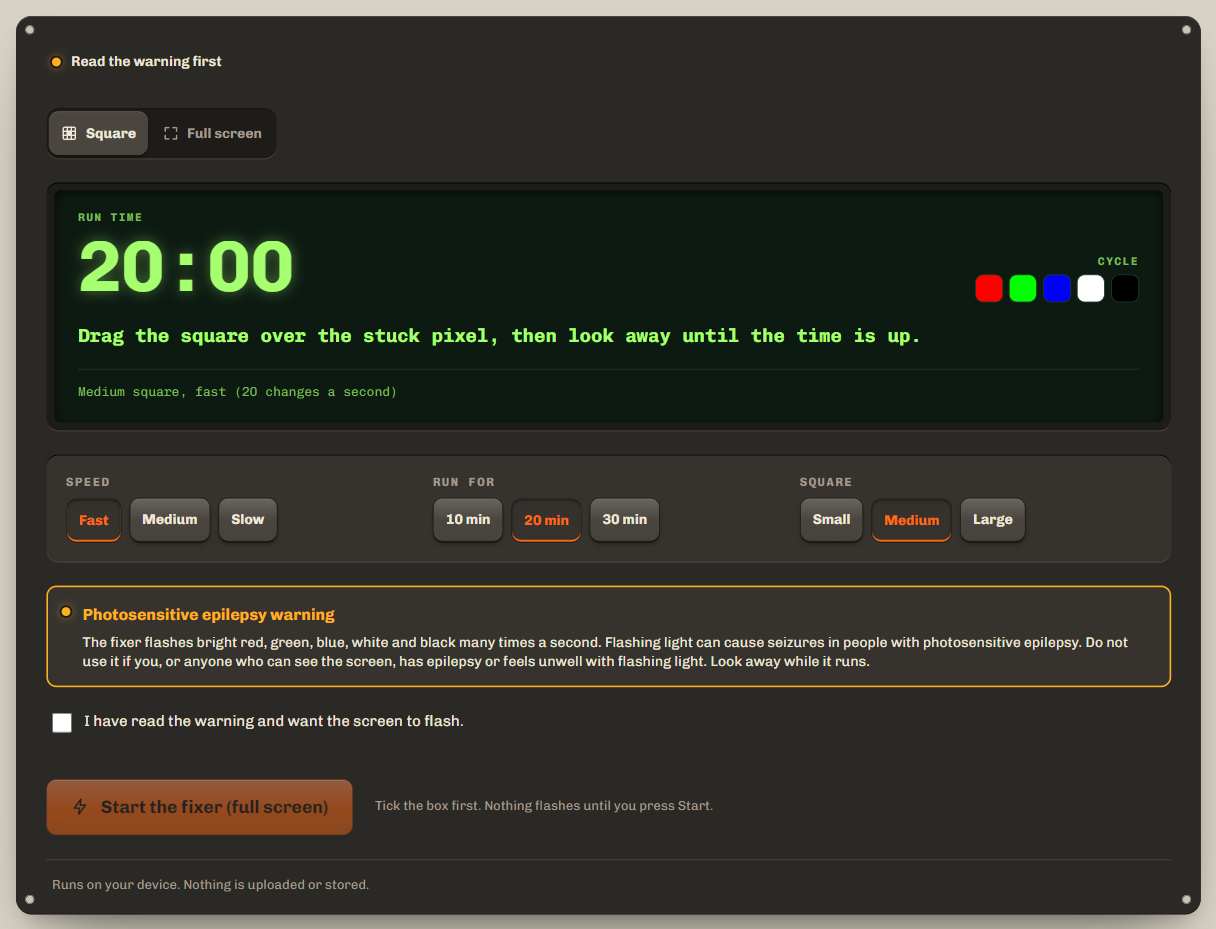
20:00
Drag the square over the stuck pixel, then look away until the time is up.
Medium square, fast (20 changes a second)
Photosensitive epilepsy warning
The fixer flashes bright red, green, blue, white and black many times a second. Flashing light can cause seizures in people with photosensitive epilepsy. Do not use it if you, or anyone who can see the screen, has epilepsy or feels unwell with flashing light. Look away while it runs.
Tick the box first. Nothing flashes until you press Start.
Runs on your device. Nothing is uploaded or stored.
How to use the stuck pixel fixer
The fixer cycles red, green, blue, white and black very fast on the pixels under it. That makes each subpixel switch on and off again and again, which sometimes frees one that is stuck on. It flashes far more than the WCAG limit of three flashes a second, so it starts only after you read the warning and press Start. If your device asks for reduced motion, it starts at the slow rate.
- Step 1Find the pixelRun the dead pixel test first. A dot that stays red, green, blue or white on every color is a stuck pixel, and the fixer may help it.
- Step 2Read the warning, then press StartThe fixer flashes fast. Tick the box under the warning and press Start the fixer. Nothing flashes before that.
- Step 3Put the square on the pixelDrag the square over the stuck pixel, or move it with the arrow keys (Shift moves 1 px). Or choose Full screen to flash every pixel.
- Step 4Look away and waitLeave it for 10 to 30 minutes. The fixer stops by itself, then test the screen again.
Does a stuck pixel fixer work?
Sometimes. A flashing fixer can wake a stuck pixel, but there is no promise: some come back after a few minutes, some after several runs, and some never do. It works only on a stuck pixel, one that stays red, green, blue or white. It cannot fix a dead pixel, which stays black because it gets no power. No software can fix that.
So it is worth a try, but on a new screen, ask the store or the maker first. Each maker has its own pixel policy, such as the Dell display pixel guidelines, and a return inside the return period is often the easiest fix.
How long to run a stuck pixel fixer
Start with 10 minutes on Fast, then test again. If the pixel is still stuck, run it for 30 minutes, a few times over a day or two. The timer stops the fixer by itself, and the total time of this visit shows on the screen. If nothing changes after a few long runs, more time is unlikely to help.
Keep the screen on: the fixer asks your device to stay awake while it runs, but turn off a screen saver or sleep timer that could still cut in. On an OLED screen, do not leave it on for hours; normal runs of up to 30 minutes are fine.
Dead pixel fix on Android and iPhone
For a phone, open this page on the phone itself, turn the brightness up and start the fixer. On Android the fixer goes full screen. On iPhone, Safari cannot show a page full screen, so the fixer fills the window instead; turn the phone sideways to hide most of the browser bars. Drag the square with one finger.
The same rule applies: the fixer may help a stuck pixel on a phone, but a dead pixel fix on Android or iPhone needs a new screen. A dark spot that grows, or a line of dead pixels, is a hardware fault and a repair or warranty job.
Stuck pixel fixer for 4K screens
The fixer works at any resolution, 4K and 8K included. On a 4K monitor or TV a single pixel is tiny, so the Small square can be hard to place: use Medium or Large, which still cover the pixel, or choose Full screen and flash every pixel at once. With two monitors, move the window to the screen with the stuck pixel before you press Start.
For a TV, open the page in the TV's browser, or connect a laptop with HDMI and move the window to the TV.
Stuck pixel vs dead pixel
A stuck pixel is always one color, often red, green or blue, because one or two of its subpixels stay on. A dead pixel is always black, because none of them light. A hot pixel is always white. To find out which one you have, run the dead pixel test: it fills the screen with plain colors and tells you what you marked. Only a stuck or hot pixel is worth time on the fixer.
How to tell each one from dust, what the maker terms mean, and why a dead pixel cannot be repaired: dead pixel vs stuck pixel vs hot pixel.
FAQ
Is the stuck pixel fixer safe for my screen?
It only shows normal colors, like any video, so it does not harm an LCD or OLED panel. Keep runs to 30 minutes and do not leave it on for hours on an OLED screen.
Is it safe for me to look at?
Not for everyone. It flashes many times a second, which can cause seizures in people with photosensitive epilepsy. Do not use it if you or anyone who can see the screen has epilepsy. Look away while it runs.
Should I press on the stuck pixel instead?
We do not suggest it. Pressing or rubbing a panel can damage it, and it can make you lose the warranty. Try the fixer first, and if the screen is new, ask for a replacement.
Does the stuck pixel fixer cost anything?
No. It is free, with no sign-up and nothing to install. It runs in your browser and sends nothing anywhere.
Related tools
All display testsFind dead and stuck pixels first, with full-screen colors.
Check OLED and LCD screens for burned-in logos and taskbars.
Check gradients, black level, gamma, sharpness and uniformity.
Maintained by NabeelUpdated Oct 22, 2026.