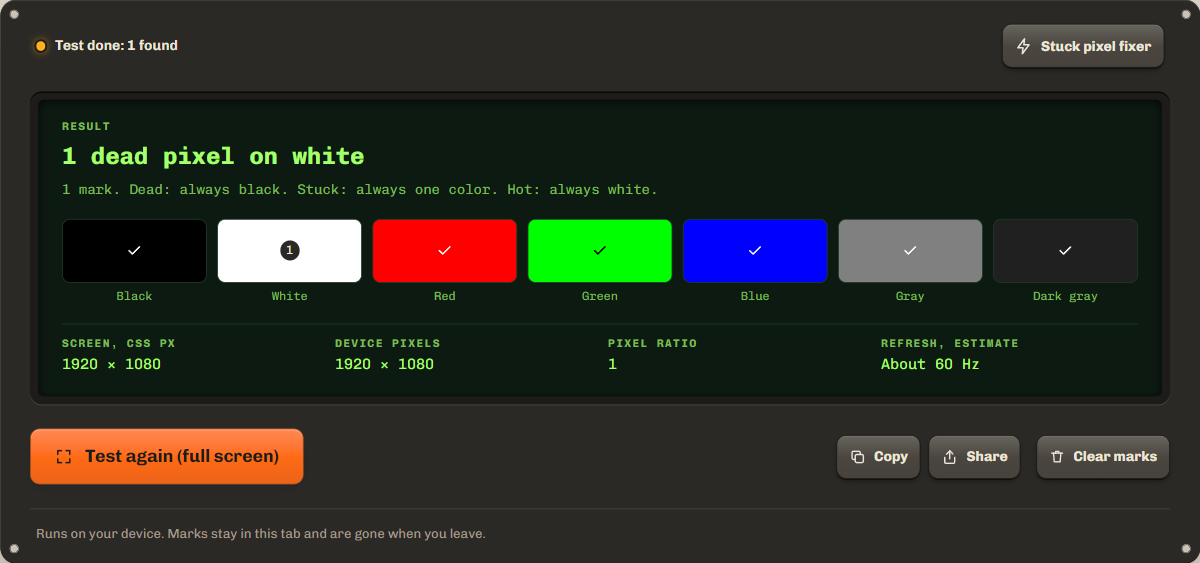
A dead pixel is always black, because none of its parts light up. A stuck pixel is always one color, such as red, green or blue, because one or two of its parts stay on. A hot pixel is always white, because all of its parts stay on. Dust can look like any of them, but it goes away when you wipe the screen. The difference matters for the fix: a dead pixel cannot be repaired, while a stuck pixel sometimes comes back to normal.
What a pixel is made of
Every pixel on an LCD screen has three subpixels: red, green and blue. Apple explains that a transistor controls each subpixel, and that “occasionally, a transistor may not work perfectly, which results in the affected subpixel remaining off (dark) or on (bright)” (Apple Support). The color you see on the faulty dot tells you which subpixels are stuck, and in which state.

Dead pixel vs stuck pixel
A dead pixel has all three subpixels off. You see it as a black dot, and it is easiest to see on a white screen. On a black screen you cannot see it at all.
A stuck pixel has one or two subpixels on all the time. It shows as a red, green, blue or mixed color dot, such as yellow (red and green on) or magenta (red and blue on). It is easiest to see on black, and it changes how it looks on other colors: a stuck green subpixel is clear on black and red, but almost hidden on green.
Watch out for the words makers use, because they do not match. Dell’s display pixel guidelines call a pixel with all three subpixels on a bright pixel, also called a “Stuck Pixel”, and a pixel with all three off a dark pixel, also called a “Dead Pixel”. So when you read a maker’s pixel policy, look at “bright” and “dark” and at whether the rule counts whole pixels or subpixels.
Dead pixel vs hot pixel
A hot pixel is the opposite of a dead one: all three subpixels are on, so the dot is white. It stands out on a black screen.
The old ISO 13406-2 standard for flat panel displays sorts faults in this way: Type 1 is a pixel that is always on (white), Type 2 is a pixel that is always off (black), and Type 3 is one or more subpixels that are always on or off (ISO 13406-2 summary). In other words, Type 1 is a hot pixel, Type 2 is a dead pixel and Type 3 is a stuck pixel. That standard was withdrawn and replaced by ISO 9241-302, 303, 305 and 307 in 2008, but many pixel policies still use its classes.
You also see “hot pixel” for cameras. There it means a dot on a photo sensor, not on a screen. If the bright dot is in your photos and not on the screen around them, the camera is the cause, not your display.
Dead pixel vs dust
Before you call it a dead pixel, clean the screen. Dell says that “sometimes what looks like a stuck pixel is usual dust or dirt”, and that a dot that goes away after you clean the screen is dust, not a fault. Apple says the same: a small piece of dust or other material “may appear to be a pixel anomaly” (Apple Support).
- Turn the screen off, so you can see dirt on the glass.
- Wipe it with a dry microfiber cloth. Do not press hard.
- Turn it on and run the dead pixel test again.
If the dot moved or went away, it was dust. If it is still in the same place, look at it on each color. There is one more case: dust trapped inside the screen. Apple says material trapped within the screen must be removed by an Apple Authorized Service Provider or an Apple Store. Do not open a screen yourself.
Dead pixel vs stray pixel
“Stray pixel” is not a term the display makers or the ISO standard use. People use it for a dot that looks out of place. It is always one of the cases above: dust, a dead pixel, a stuck pixel or a hot pixel. Use the steps on this page to find out which.
How to fix a dead pixel
In most cases, you cannot. Dell says that a dead pixel “has stopped working completely”, that dead pixels cannot be repaired, and that the only fix is a new panel. So pressing on the spot, tapping it or running a video will not bring it back.
A stuck pixel is different. Its subpixels are stuck in one state, not gone, and sometimes the pixel comes back. Our stuck pixel fixer tries to help by flashing colors over the spot. It does not always work, and it flashes fast, so read its warning first if you are sensitive to flashing light. It does nothing for a dead pixel and nothing for dust.
A hot pixel has all subpixels on. Try the stuck pixel fixer on it once. If it does not change, treat it like a dead pixel.
When to ask for a new screen
On a new screen, use the store’s return period first: it is usually the easiest route. After that, the maker’s pixel policy decides. Two examples:
- Dell Premium Panel: zero bright pixels allowed. Dell says that “if you see even one bright pixel during your warranty period, we’ll replace your display.”
- Other Dell monitors: the same Dell page says they follow “industry norms (up to 5 stuck pixels allowed)”, and the limits change by series.
The ISO classes count faults per million pixels. In Class II, the limits are 2 Type 1 (hot), 2 Type 2 (dead) and 5 Type 3 (stuck subpixel) faults per million pixels. A 4K screen has 3840 × 2160 = 8,294,400 pixels, about 8.3 million, so a screen with more pixels may have more faults and still pass.
For the limits of other brands and how to make a claim, see how many dead pixels is acceptable. Copy your result from the test and send it with the claim.