A 1000 Hz mouse sends its position once every millisecond. An 8000 Hz mouse sends it every 0.125 ms, eight times as often. That cuts the wait for the next report by at most 0.875 ms. Razer, which sells 8000 Hz mice, calls this a “huge input delay reduction from 1 to 0.125 ms” (Razer HyperPolling). The cost is CPU time and, on a wireless mouse, battery. For most people 1000 Hz is enough. 8000 Hz is for players with a fast PC and a high refresh rate screen who want every fraction of a millisecond.
What polling rate changes
Polling rate is how often the mouse reports to the computer. Logitech’s definition: “It’s how often your mouse reports its position and button presses to your computer, measured in hertz (Hz).” At 125 Hz that is once every 8 milliseconds, at 1000 Hz once every millisecond (Logitech).
The time between reports is 1000 divided by the rate, in milliseconds:
| Polling rate | Time between reports | Reports in one 144 Hz frame (6.94 ms) |
|---|---|---|
| 500 Hz | 2 ms | about 3.5 |
| 1000 Hz | 1 ms | about 6.9 |
| 2000 Hz | 0.5 ms | about 14 |
| 4000 Hz | 0.25 ms | about 28 |
| 8000 Hz | 0.125 ms | about 56 |
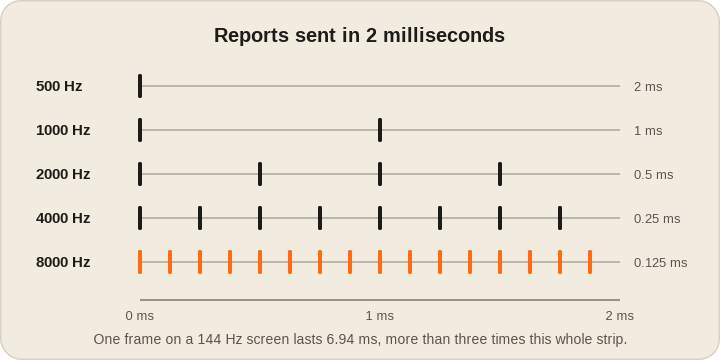
A higher rate does two things. A movement or click reaches the computer a little sooner, because the next report is never far away. And the path of the mouse is described with more points, which can look smoother on a fast screen.
1000 vs 8000 Hz
The largest saving 8000 Hz can give over 1000 Hz is 0.875 ms per input. To put that next to your screen: one frame lasts 16.7 ms at 60 Hz, 6.94 ms at 144 Hz and 4.17 ms at 240 Hz. On a 60 Hz screen, a single frame holds about 133 reports at 8000 Hz, and you can only see one picture per frame. The faster your screen, the more of the extra reports actually reach your eyes.
Razer gives the case for it: an 8000 Hz device “can report up to 8 times more data per second” than the usual 1000 Hz. For its wired 8000 Hz mode it states an average latency of 0.090 ms, against 0.549 ms for the best wired 1000 Hz product from another brand it tested. These are the maker’s own figures.
1000 vs 4000 Hz and 1000 vs 2000 Hz
4000 Hz and 2000 Hz are the middle steps. They give most of the gain at a lower cost: 4000 Hz brings the gap down to 0.25 ms and 2000 Hz to 0.5 ms. Razer’s own advice, when a PC struggles at 8000 Hz, is to “set a lower polling rate for Razer HyperPolling (4000 or 2000 Hz)”.
If you are not sure, start at 1000 Hz, then try 2000 Hz and 4000 Hz in the games you play. Keep the highest one that feels the same or better and does not cause stutter.
1000 vs 500 Hz
500 Hz sends a report every 2 ms instead of 1 ms, so a movement can reach the computer up to 1 ms later than at 1000 Hz. The reason to choose a lower rate is power: Logitech says faster rates can “use more battery on wireless mice”. On a wired mouse, battery is not a factor, so 1000 Hz costs you only a little CPU time.
What a high polling rate costs: CPU and battery
Every report is work for the computer. At 8000 Hz that is 8,000 reports a second, and the system and the game must process each one.
- CPU: Logitech says faster rates can “slightly increase central-processing-unit usage”. Razer is more direct: “In some instances, your PC may not be powerful enough to support Razer HyperPolling”, and “the computer might lack the resources needed to process 8,000 reports a second.”
- Games: Razer warns that “some game engines, particularly in older titles, simply cannot handle high polling rate devices well”. If a game stutters when you move the mouse, lower the rate.
- Windows: Microsoft’s update KB5027303 for Windows 11 “improves your computer’s performance when you use a mouse that has a high report rate for gaming” (Microsoft Support). Razer asks for the latest version of Windows 11.
- Battery: on a wireless mouse, a higher rate uses more power, as Logitech says above.
Razer’s setup checklist for 8000 Hz: connect a wired device to a native USB port on the PC, keep a wireless dongle in line of sight and within 30 cm of the mouse, keep it away from active USB 3 hubs, and close applications that keep the CPU busy.
8000 Hz keyboard: does it help?
Keyboards use the same idea: the keyboard reports key presses at its polling rate, and Razer’s HyperPolling setup advice covers both mice and keyboards. A key press at 8000 Hz can reach the computer up to 0.875 ms sooner than at 1000 Hz, the same as a mouse click. The CPU and game warnings above apply to keyboards too.
Why a browser test reads lower than 8000 Hz
Logitech warns that “third-party tools or online tests can be unreliable, often showing lower numbers or fluctuating rates”, and that “browser-based tools may not accurately process high report rates”.
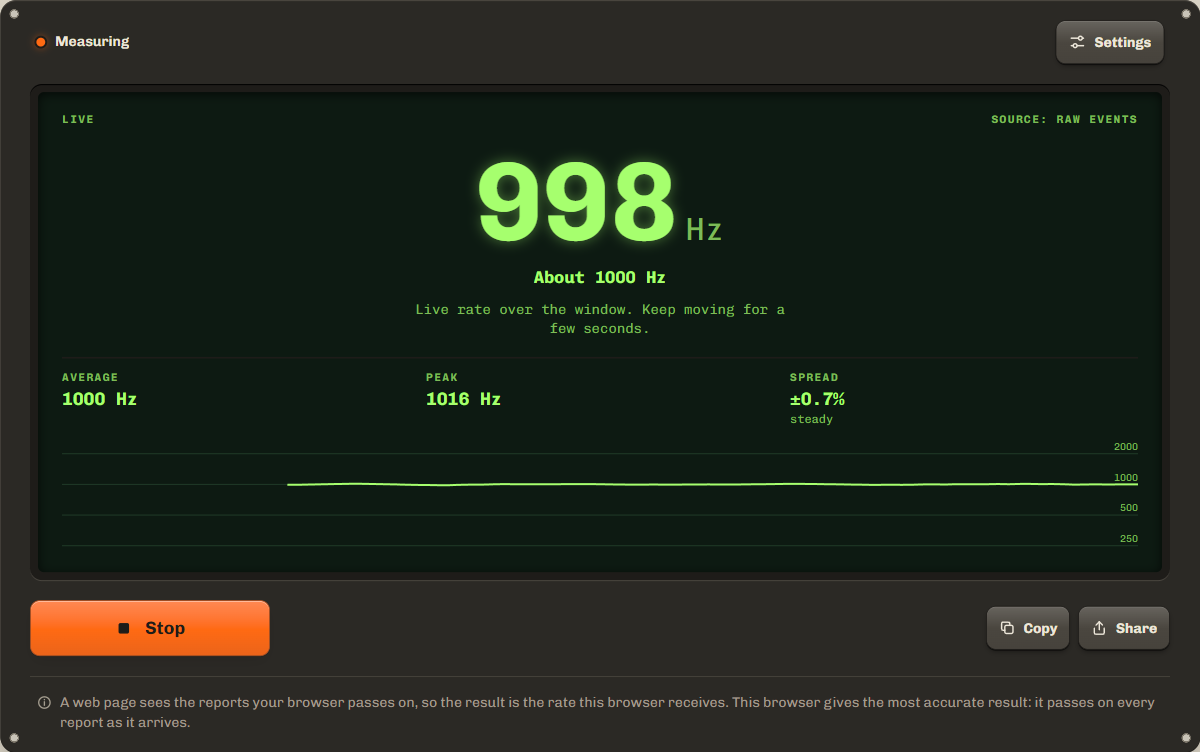
A web page only sees what the browser passes on. Most browsers send a normal move event once per screen frame, so a simple page measures your screen, not your mouse. The mouse polling rate test uses the best source each browser has; its page explains why the result can read lower than your setting. For the most accurate result at 4000 or 8000 Hz, use Chrome or Edge, plug the mouse straight into the computer, and move it fast.