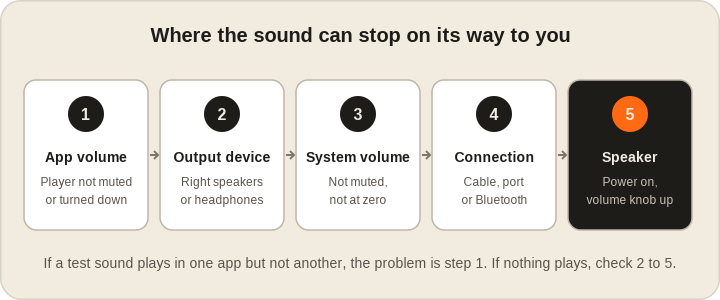
Start with the simple causes: the sound may go to the wrong device, or be muted somewhere on the way. Check in this order: the volume inside the app, the output device your system uses, the system volume and mute, the cable or Bluetooth connection, and the speaker’s own power and volume. Play a sound test after each step. If the test plays but one app is silent, the problem is that app. If nothing plays, follow the steps for your system below. They come from the official help pages of Microsoft, Apple and Google.
First, play a test sound
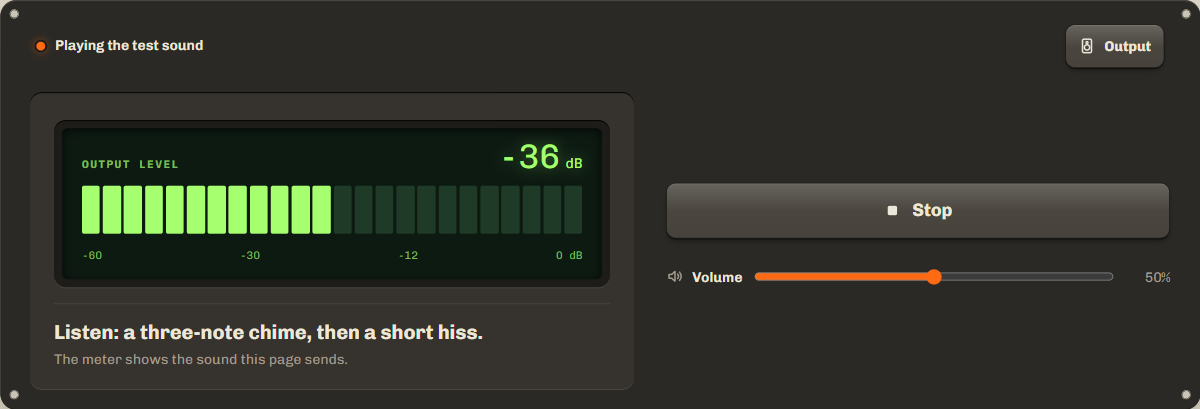
Open the sound test and press play. Watch the meter.
- The meter moves and you hear it: your system works. The silent app has its own volume or output setting.
- The meter moves but you hear nothing: the page plays, so the sound is lost after the browser. Check the output device, the volume and the connection.
- One side is silent: run the speaker test, which plays left and right separately.
No sound on Windows
These are the Windows 11 steps from Microsoft’s Fix sound or audio problems in Windows, in the order Microsoft gives them.
- Check the output. Select the Speakers icon on the taskbar, then the arrow next to the volume slider, and choose your speakers or headphones.
- Check the hardware and volume. Make sure cables are firmly connected and in the right jack, the power is on, mute is off and every volume control is up, including the one on the speakers and in the app. Try another USB port. Unplug headphones to see if the speakers work.
- Turn off audio enhancements. Go to Start > Settings > Sound, select your device under Output, and under Advanced settings set Audio enhancements to Off.
- Run the troubleshooter. Go to Start > Settings > System > Troubleshoot > Other troubleshooters, and select Run next to Audio.
- Check the volume mixer. Right-click the Speakers icon, select the arrow next to the volume slider, then the settings icon next to it (More mixer settings). Unmute anything that is muted.
- Check that the device is on. Go to Start > Settings > System > Sound, then More sound settings under Advanced. On the Playback tab, select your device, then Properties, and check that Device usage is set to Use this device (enable).
- Install updates. Go to Start > Settings > Windows Update and select Check for updates. Restart.
- Update or roll back the driver. Search for Device Manager on the taskbar and expand Sound, video and game controllers. Right-click your audio device and choose Update driver, then Search automatically for drivers. If sound stopped after an update, choose Properties, open the Driver tab and select Roll Back Driver.
- Change the audio format. In Control Panel, go to Hardware and Sound > Sound. On the Playback tab, right-click the default device, choose Properties, and on the Advanced tab try another Default Format.
- Restart the audio services. Search for Services. Right-click Windows Audio, Windows Audio Endpoint Builder and Remote Procedure Call (RPC), and select Restart for each.
For Bluetooth speakers or headphones, Microsoft has a separate page for Bluetooth that is connected but plays no sound.
No sound on Mac
Apple’s page If you can’t hear sound from your Mac speakers starts with the app: make sure its volume is not all the way down, and try another audio file to see if the problem is the file. Then:
- Built-in speakers: unplug any headphones or external speakers. Open System Settings, click Sound in the sidebar, then Output. Check that your Mac’s speakers are selected, the Output volume slider is not all the way to the left, and Mute is not selected.
- Speakers on the audio port: check that they are plugged in and powered, and check their own power switch and volume. In System Settings > Sound > Output, select them.
- USB speakers: select them in Sound > Output. If they still do not work, hold Option, choose Apple menu > System Information, and click USB under Hardware. If the speakers are not listed, unplug them and plug them in again.
- Display speakers: check the display cables, then select the display in Sound > Output.
- Digital receiver: select Digital Output in Sound > Output and set the receiver to digital input. Apple notes that the Mac’s volume controls do not work with digital output, so use the receiver’s volume.
No sound on iPhone
Apple’s steps for an iPhone speaker that plays no sound (Apple Support):
- Turn off Silent mode. With a Ring/Silent switch, move it toward the display so no orange shows. With an Action button, open Control Center and check that Silent mode is off.
- Turn off Do Not Disturb: Settings > Focus > Do Not Disturb.
- Remove any case, film or screen protector, and check the speaker opening for dirt. Clean it with a small, soft, dry brush.
- Test the speaker. Go to Settings > Sounds (or Sounds & Haptics) and drag the Ringtone and Alerts slider. If you hear nothing, or the slider is dimmed, Apple says the speaker may need service.
- Test a call on speakerphone. If you hear nothing or only static, the network may be the cause: call again later or from another place.
If the ringtone plays but a video or game is silent, press volume up while it plays: that changes the media volume. Also check that the sound is not going to AirPods or a Bluetooth speaker.
No sound on Android
Menus differ between phone makers. These steps are from Google’s help for Android and Pixel phones.
- Raise the media volume. Press a volume button, tap the menu icon next to the slider, and raise Media volume. If several Bluetooth devices are paired, tap Play media to under Media volume and choose where the sound goes (Android Help).
- Check Vibrate and Mute. Press a volume button and tap the Ring icon above the slider. To get sound back, turn off Vibrate or turn on Ring.
- Turn off Bluetooth to see if the sound comes back on the phone’s speaker (Pixel Phone Help).
- Restart. On a Pixel 6 or later, press and hold the Power and Volume up buttons for a few seconds, then tap Restart. On a Pixel 5a or earlier, hold Power for about 30 seconds.
- Test several apps. Google suggests playing 2 to 3 songs or videos from different apps. If only some sound wrong, those files may be broken. If all of them do, contact Pixel support.
- Check the hardware. Remove the case or screen protector, clean the speakers and the USB-C port with a soft, lint-free cloth, and unplug and reconnect headphones.
Still no sound?
- Try other speakers or headphones. If headphones work and the speakers do not, the speakers, their cable or their power is the problem.
- Try another app or file. If only one app is silent, look for a mute button or volume slider inside that app.
- Check the channels. If you hear sound from only one side, the speaker test plays left and right separately, and its page explains the fixes.
If your microphone is the problem, not the sound, see why your mic is not working.