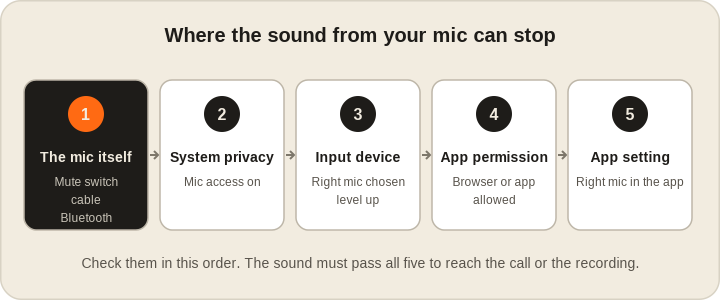
Often a mic that seems dead is only blocked by a setting. Check five things in order: the mic itself (mute switch, cable or Bluetooth), the system’s microphone access setting, the input device the system uses, the permission for your app or browser, and the microphone chosen inside the app. Test after each step with the mic test: if the level moves when you speak, the mic works and the problem is in the app. The steps below follow the official help pages from Microsoft, Apple and Google for each system.
First, test the mic on its own
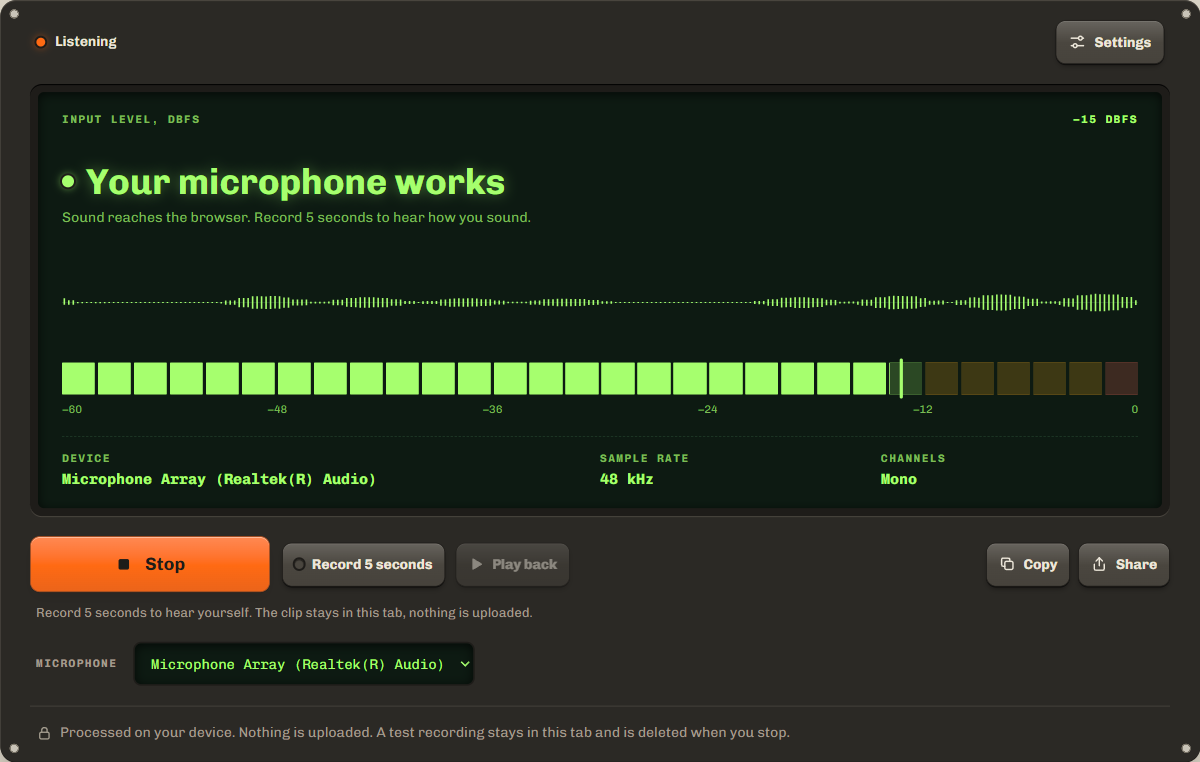
Open the mic test and allow the microphone. Speak at a normal volume.
- The level moves: the mic works. Skip to the app settings for your system below.
- The level does not move: the mic is blocked, muted, or the wrong one is chosen. Work through the steps for your device.
- The browser cannot find a microphone: the system has no input device it can use, or access is off for the browser.
Also check the hardware. Microsoft’s list starts with it: make sure the headset’s Mute button is not on, and that the mic or headset is connected properly (Microsoft Support).
Mic not working on Windows
These are the Windows 11 steps from Microsoft’s Fix microphone problems page.
- Turn on microphone access. Go to Start > Settings > Privacy & security > Microphone. Turn on Microphone access and Let apps access your microphone. Desktop apps, such as most browsers, are not in that list: for them, also turn on Let desktop apps access your microphone.
- Choose the right microphone. Go to Start > Settings > System > Sound. Under Input, open Choose a device for speaking or recording and select your mic.
- Test it in Windows. Select the arrow next to the device, then Start test under Microphone test. Speak, select Stop test, then Play under Recorded sample.
- Raise the volume. In the same input settings, move the Input volume slider up if the mic is too quiet.
- Run the troubleshooter. Go to Settings > System > Sound, scroll down to Advanced, and under Troubleshoot common sound problems choose Input devices.
- Reinstall the driver. Right-click Start and select Device Manager. Expand Sound, video and game controllers, right-click the audio device and select Uninstall device, check Attempt to remove the driver for this device, then Uninstall. Restart the PC: Windows should reinstall it. If it does not, select Scan for hardware changes in Device Manager.
If your camera has a built-in microphone, Microsoft also says to check that the camera is allowed: Start > Settings > Privacy & security > Camera.
Mic not working on Mac
Apple’s steps are in two places in System Settings.
- Allow the app. Choose Apple menu > System Settings, then click Privacy & Security in the sidebar. Click Microphone and turn on access for your app or browser (Apple Support).
- Choose the input. Choose Apple menu > System Settings, then click Sound in the sidebar. Click Input, then select your microphone in the list. Drag the input volume slider if it is too quiet or too loud (Apple Support).
A tip from the same Apple pages: the Recording Indicator in Control Center shows when the microphone is in use or was used recently. If another app is using the mic, close it and try again.
Mic not working on iPhone
Apple’s page If the microphones on your iPhone aren’t working gives these steps:
- Clear the microphones. Remove any screen protector, film or case, and clear debris from the openings on your iPhone.
- Test calls. Open Voice Memos and tap Record. Speak near the bottom of the phone, stop, and play it back.
- Test the speakerphone and video mics. Open Camera and record a video while you speak near the top of the iPhone. Switch to the other camera and record again. Play both back.
- Check the app. Go to Settings > Privacy & Security > Microphone and make sure the app is turned on. If it is on, or is not in the list, Apple says to contact the app developer.
- Get service. If your voice is still unclear in calls, recordings or apps, the microphone may need service.
The tests tell you which mic has the problem. If Voice Memos sounds clear but one app does not work, the cause is the app’s permission or its settings, not the hardware.
Mic not working on Android
Menus differ between phone makers. These steps are from Google’s help pages, written for Pixel phones and stock Android.
- Unmute. In a call, check if the microphone icon is highlighted. If it is, tap it to unmute (Pixel Phone Help).
- Turn off Bluetooth.
- Close your apps and restart. On a Pixel 6 or later, press and hold the Power and Volume up buttons for a few seconds, then tap Restart. On a Pixel 5a or earlier, press and hold Power for about 30 seconds.
- Remove the case or screen protector, and gently clean the mics and the USB-C port with a soft, lint-free cloth.
- Test with the Recorder app, or record a video with the Camera app.
- Check the app’s permission. Open Settings > Apps, tap the app (or See all apps first), then Permissions > Microphone, and choose Allow (Android Help).
- Check the switch for the whole phone. In Settings > Security & privacy > Privacy > Privacy controls, make sure Microphone access is on. When it is off, no app can use the mic.
If the mic works in the Recorder app but not in one app, update that app, or remove it and install it again, as Google suggests.
Mic not working in the browser
A website needs two permissions: the system must allow the browser, and the browser must allow the site.
- Chrome on Android: open Chrome, tap More (three dots) > Settings > Site settings > Microphone. Select Sites can ask for your microphone or camera. If the site is under Blocked, tap it, then tap Allow. Google adds that if microphone access for Android is off, Chrome cannot use the mic, so check Chrome’s app permission too (Chrome Help).
- On a computer: first allow the browser in the system settings above (Windows: Let desktop apps access your microphone; Mac: Privacy & Security > Microphone). Then allow the site when the browser asks.
The mic works in the test but not in Zoom, Teams or Discord
Then the system side is fine and the app chooses the wrong input, or mutes you. Open the app’s audio settings and pick the same microphone the test used. Check that you are not muted in the app, and that no other app holds the mic. The mic test page explains why a mic can sound different in a call app: call apps add their own noise and echo processing.
If your speakers or headphones are the problem instead, see no sound on your computer or phone.